Saturday, December 18, 2010

Oracle UCM 11g Access From ADF 11g Table Row

There is quite obvious requirement, to show how many documents are uploaded and assigned for every employee. While we can open employee details and check available document, its more user friendly to show number of attached documents directly inside table row.

We are uploading new document for employee #200:


When document is uploaded, user can refresh employees table and see updated number of attachments for employee #200:


Sample application highlights record in green, if there are more than 0 documents attached.

We can upload more documents for employee #206, attachment status will be updated accordingly:


This allows to get information in advance and user can select only those records, he needs to select. For example, when Attachments indicated 0 documents, WebCenter 11g Document Management task flow is empty - without documents:


ADF 11g table contains column to indicate number of documents stored in Oracle UCM 11g per each employee #id:


If needed, employees table refresh is done manually, by calling Execute operation:


Employees VO contains one transient attribute - this attribute (UcmDocStatus) is referenced from ADF 11g table to show number of attached documents:


I have overridden prepareSession() method for AM, Oracle UCM 11g connection is established here and stored into session scope, to share it across requests:


Transient attribute getter method is overridden - getUcmDocStatus(), to retrieve number of documents per each employee #id:


On the side note, I recommend to use ADF logger, instead of external log4j library. You will avoid external library dependency by using built-in ADF logger class:


Download sample application - UCMNewFolderStatus.zip.

Sunday, December 12, 2010

JSF Page Template for JSF Page Fragment In Oracle ADF 11g

Long time ago, back in early 2007, I had a blog post about JSF Page Templates - Templating in Oracle JDeveloper 11g. First technical preview for JDeveloper/ADF 11g was just released and it was my first blog post about 11g version. It was exciting time - I was writing it while flying somewhere between Norway and Denmark. We keep forgetting good things and remember only bad, but just think about - JDeveloper 11g is referencing ADF libraries from ADF Runtime module, but in 10g we were copying these libraries into every application, WEB-INF folder. Yes..., I'm happy to work with 11g.

Today I will return to JSF Page Template topic and will describe how you can apply it for JSF Page Fragments and improve reusability across your system. Typically we apply JSF Page Template for JSF Pages, but there are many use cases when templates can be applied for JSF Page Fragments (when using ADF Regions). Download sample application - FragmentTemplate.zip.

This application implements JSF Page Template with Query Criteria and area for results data:


JSF Page Template is mapped with Page Definition for Query Criteria executables:


As you already know, Query Criteria returns search result into component defined by Result Component Id attribute. Result data collection will be defined inside JSF Page Fragment created based on our template. This means, from consuming JSF Page Fragment we need to pass information about Result Component Id into JSF Page Template and define it for Query Criteria:


JSF Page Template must declare attribute for Result Component Id, to pass value from consuming JSF Page Fragment:


This attribute will be referenced from Query Criteria:


Application implements two JSF Page Fragments, each of them is based on JSF Page Template with Query Criteria. One JSF Page Fragment provides simple Search form, another Master-Detail relationship:


If we want to preserve JSF Page Template Query Criteria parameters, when switching between different JSF Page Fragments - Query Criteria VO implementation class needs to be overridden:


Override executeQuery() method, and call saveState() function to ensure that Query Criteria parameters are saved when we are navigating between different instances of the same Query Criteria:


Main page contains two tabs, each tab renders different JSF Page Fragments, these fragments are implemented based on JSF Page Template. Query Criteria is coming from JSF Page Template:


This allows to reuse the same Query Criteria for different JSF Page Fragments. For example, user can search:


Open another JSF Page Fragment with Master-Detail and use the same Query Criteria - no need to implement it twice:


Perform another search:


Same Query Criteria will be applied again, now for the first tab:

Saturday, December 11, 2010

Oracle UCM 11g - Uploading Large Files from ADF 11g Applications

By default, Oracle ADF 11g application allows to upload maximum 2 MB size files. Oracle WebCenter 11g Content Management ADF Task Flows inherit the same configuration from ADF settings. I will explain how to increase maximum file size and upload larger files into Oracle Content Server 11g.

For sample application I have increased maximum file size to 20 MB, you can download it from here - UCMNewFolderLarge.zip.

Let's test default file upload settings of 2 MB maximum and try to upload 15 MB file:


When trying to upload this file, as expected WebCenter Content Management task flow returns The file is too large error:


In order to set larger maximum file size setting, add following parameter into Context Initialization Parameters group of web.xml - UPLOAD_MAX_DISK_SPACE:


This example sets maximum file upload size to 20971520 bytes, or divided by 1024 and one more time by 1024 - 20 MB. Its common mistake, sometimes we keep forgetting to prefix this parameter with Trinidad library reference and not getting expected behavior - still File is Too Large error:


Make sure UPLOAD_MAX_DISK_SPACE parameter is referenced from Trinidad library:


After adjusting maximum file size to 20 MB, 15 MB file is uploaded to Oracle Content Server successfully:


Now I will try to upload 50 MB file:


WebCenter Content Management task flow returns The File is Too Large error and what a surprise - shows correct maximum size limit (20 MB):

ODTUG Kscope11: Oracle ADF 11g - Driving Power for Oracle SOA/BPM/WebCenter 11g Integration

I have received confirmation for ODTUG Kscope11 conference abstract acceptance - Oracle ADF 11g - Driving Power for Oracle SOA/BPM/WebCenter 11g Integration. It will be my 4th time on ODTUG, this year - Long Beach, California, June 26-30.

During the session, I will describe and present ADF 11g as a key framework you can employ while working with SOA, BPM, WebCenter implementations. As it should be during technical conference, I will show various technical integration scenarios - for example custom worklist application functionality based on SOA/BPM human workflow, by implementing custom ADF Faces screen and managing transactional state through ADF BC. There will be a demo about SOA/BPM 11g integration into WebCenter Spaces 11g.

You will see that it is impossible to have complete SOA/BPM 11g or WebCenter 11g implementations without applying ADF 11g framework.

Myself, I will be happy to learn new stuff from the colleagues around the globe. See you in June.

Wednesday, December 8, 2010

Oracle UCM 11g Remote Intradoc Client (RIDC) Integration with Oracle ADF 11g

Few days ago I was describing Oracle Universal Content Management (UCM) 11g connection setup from JDeveloper 11g for Oracle WebCenter 11g ADF task flows - Oracle Universal Content Management 11g and Oracle ADF/WebCenter 11g Integration. Its great we have out of the box WebCenter ADF task flows for document management in UCM. However, for complete business scenario implementations usually its not enough and we need to manage Content Repository programmatically. This can be achieved through Remote Intradoc Client (RIDC) API. Its quite hard to find any practical information about this API, but I managed to get code for UCM folder creation/removal and folder information. Will share it today with you, through sample application - UCMNewFolder.zip.

To compile this sample application, you will need to install RIDC library as extension for JDeveloper 11g. Please read instructions available here.

This application allows to add new employee, same time when new employee record is stored in database, it automatically creates new folder in UCM. Folder name is the same as employee ID, this allows to show documents related to selected employee. Adding new employee into the system:


Newly added employee is assigned with ID #232, folder with the same name is created in UCM (achieved programmatically using RIDC API) - WebCenter Document Management ADF task flow renders this folder:


UCM folder is changed dynamically, based on employee table row selection, because startFolderPath parameter points to managed bean method - where folder path is constructed based on current employee row selection:


We can upload new documents using out of the WebCenter functionality:


If someone is trying to remove employee record, we can check first if any documents exist for this employee. If there are documents available in Content Repository - employee removal can be prevented (achieved programmatically, using RIDC API):


Delete associated documents first:


Employee record is removed successfully:


Below I'm listing RIDC API methods from sample application. Connection with UCM is established through socket type, without specifying Content Repository password, Identity Propagation is done automatically through ADF Security Context.

1) Create new UCM folder

DataBinder dataBinder = idcClient.createBinder();
dataBinder.putLocal("IdcService", "COLLECTION_ADD");
dataBinder.putLocal("hasParentCollectionID", "true");
dataBinder.putLocal("dCollectionName", folderName);
dataBinder.putLocal("dParentCollectionID", this.getFolderIdFromPath(idcClient, userContext, PATH));
dataBinder.putLocal("dCollectionOwner", "sysadmin");
ServiceResponse response = idcClient.sendRequest(userContext, dataBinder);
DataBinder serverBinder = response.getResponseAsBinder();
System.out.println(serverBinder.getLocal("dCollectionID"));

There is no need to close RIDC connection after request, it is closed automatically when response.getResponseAsBinder() method is invoked. For new folder we must specify parent folder ID, it is internal UCM identificator, it can be retrieved from folder path:

2) UCM folder ID Info

DataBinder dataBinder = idcClient.createBinder();
dataBinder.putLocal("IdcService", "COLLECTION_INFO");
dataBinder.putLocal("hasCollectionPath", "true");
dataBinder.putLocal("dCollectionPath", path);
ServiceResponse response = idcClient.sendRequest(userContext, dataBinder);
DataBinder serverBinder = response.getResponseAsBinder();
DataResultSet resultSet = serverBinder.getResultSet("PATH");
DataObject dataObject = resultSet.getRows().get(resultSet.getRows().size() - 1);
folderId = dataObject.get("dCollectionID");

3) Delete UCM folder

DataBinder dataBinder = idcClient.createBinder();
dataBinder.putLocal("IdcService", "COLLECTION_DELETE");
dataBinder.putLocal("hasCollectionID", "true");
dataBinder.putLocal("dCollectionID", this.getFolderIdFromPath(idcClient, userContext, path));
dataBinder.putLocal("force", "true");
dataBinder.putLocal("deleteImmediate", "true");
ServiceResponse response = idcClient.sendRequest(userContext, dataBinder);
response.getResponseAsBinder();

4) Check if folder contains Files or internal Folders

DataBinder dataBinder = idcClient.createBinder();
dataBinder.putLocal("IdcService", "COLLECTION_GET_COLLECTIONS");
dataBinder.putLocal("hasCollectionID", "true");
dataBinder.putLocal("dCollectionID", this.getFolderIdFromPath(idcClient, userContext, path));
ServiceResponse response = idcClient.sendRequest(userContext, dataBinder);
DataBinder serverBinder = response.getResponseAsBinder();


DataResultSet resultSet = serverBinder.getResultSet("COLLECTIONS");
docCount += resultSet.getRows().size();


dataBinder = idcClient.createBinder();
dataBinder.putLocal("IdcService", "COLLECTION_GET_CONTENTS");
dataBinder.putLocal("hasCollectionPath", "true");
dataBinder.putLocal("dCollectionPath", path);
response = idcClient.sendRequest(userContext, dataBinder);
serverBinder = response.getResponseAsBinder();


resultSet = serverBinder.getResultSet("CONTENTS");
docCount += resultSet.getRows().size();

When I was working with UCM RIDC API, sometimes its very tough to get any info about API method return values. But there is a small trick, you can iterate through response result set names and get names for all return values:

Iterator iter = serverBinder.getResultSetNames().iterator();
while (iter.hasNext()) {
System.out.println(iter.next());
}

Monday, December 6, 2010

Oracle Universal Content Management 11g and Oracle ADF/WebCenter 11g Integration

Every organization operates with different kind of documents. Oracle Forms systems usually store documents directly in database, using BFILE/BLOB format. It is hard to manage such content and publish it effectively. Oracle Fusion provides Oracle Universal Content Management (UCM) 11g product to store and manage unstructured data (documents, images, etc.). Today I will explain how to define Content Server connection from JDeveloper 11g and how to use WebCenter 11g ADF task flow to manage content stored in UCM repository.

You can download Oracle UCM 11g from OTN:


Sample application - UCMNewFolder.zip. This sample is typical ADF 11g application with WebCenter 11g support. Additionally it is using Oracle UCM 11g RIDC API, topic to be covered by future posts. There is no need to import RIDC API for WebCenter 11g UCM related ADF task flows. Its just my sample application is using advanced Oracle UCM 11g functionality (programmatic folder creation, removal and information retrieval) I will explain it in near future.

In order to compile provided sample application, you need to install RIDC library. This library can be found inside Oracle UCM 11g installation home - ORACLE_ECM/ucm/Distribution/RIDC/jdev:


Install this library as JDeveloper 11g extension - from local file:


New extension will be added:


RIDC library will be listed as JDeveloper 11g extension:


Now, when RIDC library was installed - we can compile sample application. Let me repeat - there is no need to install RIDC library, if you want to implement only WebCenter 11g ADF task flows related to UCM. However, sample application contains custom functionality, it requires RIDC library (next post topic).

Its time now to define Content Repository connection. This will enable us to use WebCenter 11g Document service (Oracle UCM 11g) ADF task flows:


There is developer guide for Oracle WebCenter 11g, it describes how to setup connections for Oracle UCM 11g from JDeveloper 11g environment - Integrating, Presenting, and Publishing Content. I will explain from my experience, what are the most popular options for Content Repository connection configuration. As you can see from Oracle WebCenter 11g developer guide, there are various RIDC Socket Types. There are two most common types - web and socket. You should keep in mind, when using web socket - it will not perform Identity Propagation and will not access secured Content Repository content. This means web socket is good for read-only public access. Let's check how it works. I will configure web socket connection:


For web socket, you need to specify URL of the Web Server Plugin, Admin Username and Password for Oracle UCM. Set this connection as primary, it will become default connection:


Before running application and testing defined connection, lets open Content Server admin console and check how content folders are defined there:


Under Contribution Folders we have our custom emplDocs folder. This folder was created by me, WebCenter 11g Document service ADF task flows are configured to point to this folder:


Folder is protected by HumanResources security group:


Now when I run sample application, with web socket configured for Content Repository connection, login is failing. Its because web socket is not allowed to perform Identity Propagation from ADF security context, Oracle UCM 11g server rejects anonymous access to protected folder (it would work if we would try to connect to public folder):


Let's change to socket connection and see how it will work. For socket connection, specify its type, server host and listener port (admin username and password are not needed). Keep in mind, Oracle UCM 11g Content Server needs to be configured to accept requests from WebLogic Server machine, otherwise socket connection will be rejected:


Now application is able to connect to protected folder and render WebCenter 11g Document service ADF task flow - Document Manager:


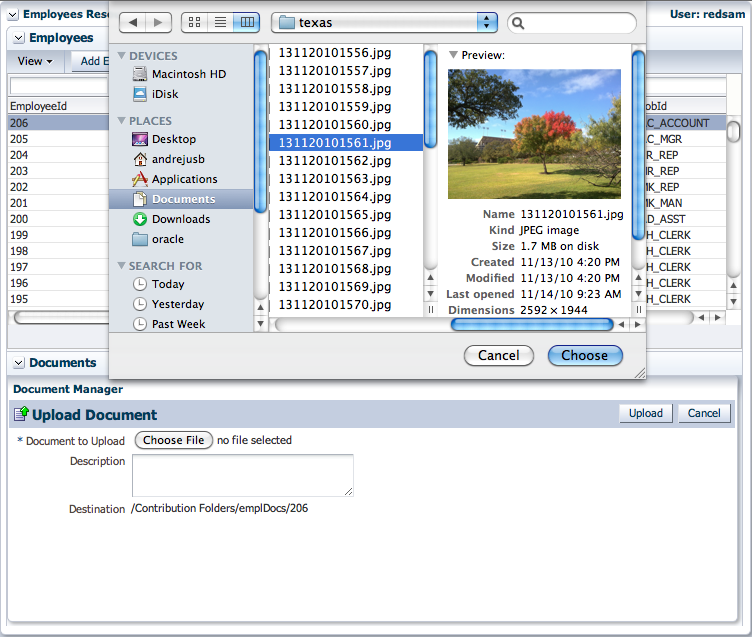
Document Manager WebCenter 11g ADF task flow provides different document management operations out of the box - file upload, download, removal, update and versioning. We can test it and try to upload a new file:


I will select image file:


File is successfully uploaded into protected folder and stored inside Content Repository - Oracle UCM 11g:


My next blog post will describe how to manage Oracle UCM 11g folder structure programmatically from Java code using RIDC library - create, remove and retrieve folder info.