Saturday, June 19, 2010

ADF Regions and Nested Application Modules to Improve Performance

Oracle Fusion application typically includes multiple regions and integrates smaller applications into dashboard for better user experience. Users like this approach, however we should check what are implications for technical side. Today I'm describing different approaches for ADF Regions integration and use of Nested Application Modules.

Download sample application - ADFIntegrationNested.zip. This sample contains multiple Oracle JDeveloper 11g PS2 applications to demonstrate integration functionality together with nested application modules usage.

You will find first application with Employees Model implementation. ADF BC Model is packaged into ADF JAR Library to reuse it inside main application:


Second application is identical to first one and implements Jobs Model functionality. It is packaged into ADF Jar Library as well:


There are two applications two integrate ADF BC Model and use Business Services inside ADF Regions. Why two applications? First integrates ADF JAR's directly into ViewController - means using Application Modules directly from ADF JAR's. Second integrates ADF JAR's into local Model project, Business Services from imported libraries are exposed through local proxy Application Module - this Application Module contains Nested Application Modules from imported libraries.

Application without Nested Application Modules (FIRST) - no Model part implementation:


Application with Nested Application Modules (SECOND) - contains local proxy Application Module, it joins Application Modules from imported libraries into Nested group:


We have two imported libraries, based on Employees and Jobs models:


FIRST application integrates Model libraries directly into ViewController, this means DataControl is available:


You can see two Data Controls available, this basically means we are using two different Application Modules. Application is deployed on WLS under regions context root path:


Now we can test FIRST application, it implements two ADF Regions based on two Application Modules from imported ADF JAR Libraries:


Type any value into Employees and Jobs regions, press Save inside Employees region:


Press Undo inside Jobs region - it works as expected, data from Jobs region is reset to original values and Employees keeps updated values. It happens because we are using two different Application Modules - transactions are managed separately:


While it works good from user perspective, if we check reserved database connections, we will see two of them:


Thats quite logical - we are using two Application Modules, both are present on current page inside of two regions. However, from performance view its not ideal - each user will use two database connections in this case.

How we can improve this and use only one connection even for two ADF Regions working with two Application Modules? We can use Nested Application Modules. When we are importing ADF JAR Libraries, local proxy Application Module can be created to join imported ones into Nested group - check SECOND application:


SECOND application imports ADF JAR libraries with Model implementation for Jobs and Employees into local Model project:


Local proxy Application Module doesn't have any View Object Instances - its empty:


But it contains Application Module Instances - Nested group of modules from imported libraries:


In Data Control we can see now only one local Application Module, it contains nested Application Modules:


Nested Application Modules bring View Object Instances from imported ADF JAR Libraries:


I'm using those View Objects from Nested Application Modules inside ADF Regions.

Important to mention, both Commit and Rollback operations are declared on local Application Module. Since imported ones are nested, Commit and Rollback operations are applied from master Application Module:


Main page contains ADF Faces Dashboard component with both regions for Jobs and Employees:


SECOND application is deployed with nestedregions context root path:


Again two ADF Regions are rendered:


We type into Employees and Jobs, press Save for Employees to commit changes:


Press Undo in Jobs region:


Uncommited data in Jobs is reverted, commited Employees changes remain:


Here is one very critical difference between ADF Region and ADF Page - even we are using Nested Application Modules and Commit operation from master Application Module - it still commits only transaction for current region (specific imported Application Module), which is great. With ADF Page it would commit changes from all Nested Application Modules at once.

Let's take a look into database connection usage, only one database connection is used now - great performance improvement:


As you can see, Nested Application Modules in combination with ADF Regions can be great performance improvement in Oracle Fusion applications.

Thursday, June 10, 2010

Deploying an ADF Secure Application using WLS Console

Quick note about ADF Secure application deployment.

Juan Ruiz from Oracle explains how to deploy ADF Secure application on standalone WLS, using WLS console. Check his blog post - Deploying an ADF Secure Application using WLS Console.

Groovy String Operations in Oracle ADF 11g

Groovy Script support by Oracle ADF 11g gives us good flexibility to operate attribute values and implement business logic. Often you need to parse String type attribute values - it can be easily done using Groovy script directly in ADF BC.

Download sample application - GroovyStringMethods.zip. This sample implements validation rule for Salary attribute:


Validation logic is pretty basic, it compares old and new values, if attribute value was changed - it fails:


Now is interesting part - validation execution rule. Here I'm calling substring() method for String type Salary attribute directly in Groovy script. If JobId of current employee starts with IT, only then validation rule is triggered:


I can use toUpperCase() method as well. Using Groovy, LastName attribute is converted to upper case:


On runtime, String type attributes are successfully parsed, validation rule is invoked and it prints LastName in upper case:


Special thanks for researching this, going to my colleague - Inno from Soweto :)

Monday, June 7, 2010

LOV Description Text with Groovy

There was a question on ADF EMG group, about LOV description texts. While it is usually recommended to create Association and join description text attribute into VO, sometimes people are looking for different approaches (for one or another reason). Today I will tell you about approach, I recently discovered - to get LOV description text through Groovy script, without joining attribute into VO. With this approach, framework executes fault-in query for description text, directly from EO. This means, instead of one join SQL statement, there will be executed smaller SQL selects for each LOV description, plus main VO. To read more about fault-in queries executed from EO, check Steve Muench blog - Difference Between View Object Select and Entity doSelect() Method.

Download developed sample application - DescriptionAttrGroovy.zip. Make sure you have Association between main Employees EO and EO with description text:


Create new transient attribute - DepartmentName, in Employees EO. Set this attribute value as Expression and provide correct Groovy script - Departments.DepartmentName. This means we will reference DepartmentName directly through Association, without joining it into VO:


Let me repeat myself - its not really recommended approach, I personally prefer to join description attribute into VO, because it allows to run single joined query.

Make sure you set expression recalculation dependency, based on DepartmentId EO attribute:


You need to set Auto Submit = true for the same DepartmentId EO attribute, this is needed to refresh transient DepartmentName attribute:


Set DepartmentName attribute dependency on DepartmentId, everything on EO level still:


This will allow to refresh DepartmentName with correct value, when DepartmentId will be changed.

Model part is implemented at this step, let's drag and drop LOV component along with description text in UI:


We render LOV and description:


Change LOV value, description is retrieved through Groovy expression and updated as well:


Check in the log, ADF BC executes additional SQL fault-in statement, to retrieve new description value:


No Java, No Magic - all works in declarative way.

Saturday, June 5, 2010

ADF 11g Fusion Projector Skin

This week I was reading Oracle Fusion Middleware Web User Interface Developer's Guide for Oracle ADF 11g, and have found new and interesting thing for me - projector skin, see all Oracle ADF Faces Skins. There is special skin for Oracle ADF Faces components, it allows better optimized rendering on projector devices. This is especially important when doing different presentations and demos. When you run this skin on desktop monitor, there is no difference to see, but when running on projector color scheme looks much more contrast.

JDeveloper 11g PS2 bring update for fusion skin, namely fusion-11.1.1.3.0. As per documentation, panelTabbed, navigationPane and panelAccordion components look and feel is improved. Let's run sample application - FusionSkin.zip and see it.

Default JDeveloper 11g PS2 fusion skin:


Now I change it to fusion-11.1.1.3.0 skin available with JDeveloper 11g PS2:


Thats true, panelTabbed and panelAccordion appear much better and lighter. I have noticed, tabs are opening faster as well:


Finally, we have fusion-projector skin - optimized for rendering on projector screens. There is JDeveloper 11g PS2 fix for this skin as well - fusion-11.1.1.3.0-projector:


There is no obvious visual difference when running on desktop monitor, however still you can see that component borders are rendered sharper:


Managers can enjoy ADF 11g presentations and demos without having eye pain ! :)

Handling Exceptions in Oracle UI Shell and Displaying Popup Error Message

Based on my previous blog post - Handling Exceptions in Oracle UI Shell and ADF Dynamic Regions, blog reader was asking - if it is possible to simplify provided sample application and show ViewController exception in lightweight Popup component, instead of closing all UI Shell tabs and rendering dynamic region. I did some research and answer is yes, possible. Today I will describe updated sample application, where exceptions are rendered in popup component, and UI Shell tabs are not closed as in previous implementation.

Download sample application - ADFIntegrationUIShell3.zip. This sample implements lightweight popup to render exception messages handled by ADF Task Flow exception handler activity.

If you will take a look into previous sample, from blog post above, you will notice key difference in Launcher bean getDynamicTaskFlowId() method. You will see that this method is simplified now - even in case of error, the same dynamic region (welcome region) will be rendered. In previous sample, in case of error, another dynamic region was rendered - error region. Its changed now, to render basic FacesMessage, instead of heavy dynamic region, in case off error:


Welcome region is declared as dynamic region, same as before:


This allows to re-execute getDynamicTaskFlowId() method, when error happens - because exception handler activity is declared on the same page where UI Shell is implemented. UI Shell page is pretty straightforward, it contains only reference to welcome dynamic region:


Thats it, we are ready to test now, but before doing test - let's check one small hint. In latest JDev 11g PS2, we got updated Fusion skin - fusion-11.1.1.3.0. This new skin version contains fixes for Tab components, I have noticed UI Shell tabs are rendered faster now. So, I have updated sample application to work with latest Fusion skin:


You can see, Tab components are rendered much better, and I should say that tabs are opening faster:


As per previous sample, Departments region contains broken reference to Commit operation, Save button generates exception. Let's test it and press Save button, now UI Shell tabs are not closed, but popup is rendered with information about exception:


User can close error popup and continue to work with the system, exception was cleared from ControllerContext programmatically:

Wednesday, June 2, 2010

Oracle WebTier 11g Configuration for ADF 11g Applications

Oracle Web Tier description - Oracle Web Tier includes components that interact with end users at the outer most tier of application grid infrastructure typically through HTTP requests and responses. Oracle Web Tier hosts web pages (static and dynamic), provides security and high performance along with built-in clustering, load balancing and failover features. It sounds like this Oracle Fusion Middleware product can improve ADF applications performance, especially on public internet. Typically ADF applications are coming with significant amount of Java Script and skin images - Rich Client, so let's see how Oracle Web Tier components (HTTP Server and WebCache) can help us.

You should start with Oracle documentation - Oracle Web Tier Components Documentation. It is good, and gives lots of information about product installation and configuration, however there is no clear path described how to setup it for ADF applications. There is useful WebCenter Spaces document - Improving WebCenter Spaces Performance with Oracle Web Cache, it generally describes how Oracle Web Tier improves WebCenter and ADF performance with better compression and caching.

Today I will talk about how you can configure Oracle Web Tier to work together with ADF 11g applications.

There is sample application for today post - SAFootballApp.zip. Why football, you may ask? I'm now in South Africa, where football World Cup starts next week, so I decided to dedicate it for football :) Application comes with specific ADF 11g configuration to enable static resources compression and caching, I will describe it later in this post.

I will structure this post into different steps, it will be easier for you to understand. If you follow these steps, most probably you will be able to setup Web Tier components successfully.

1. WebLogic Server

Download and install latest WLS (at this moment 10.3.3)

2. Application Development Runtime 11.1.1.2

Download and install APP_DEV 11.1.1.2 libraries into WLS

3. Application Development Runtime 11.1.1.3

Download and install APP_DEV 11.1.1.3 patch

4. WebLogic domain

Create WebLogic domain. You may create Managed Servers as well, its not important in this blog post context. When create domain, make sure you select support for Oracle Enterprise Manager and Oracle JRF libraries:


5. Start WebLogic domain Admin Server

When WebLogic domain is created, make sure you have started Admin Server. It should be Up, for Web Tier configuration and association with WebLogic domain.

6. Web Tier 11.1.1.2

Install Web Tier 11.1.1.2 into Fusion Middleware home. Follow installation guide instructions, from Web Tier document link provided above. Make sure you select only installation - configuration will be done later:


Configuration will be done later, because we need to install 11.1.1.3 patch first.

7. Web Tier 11.1.1.3

Install Web Tier 11.1.1.3 as described in installation guide.

8. Web Tier configuration

Make sure WebLogic Admin Server is running and run Web Tier configuration script (read Web Tier installation instructions).

In Configure Components wizard screen, select both HTTP Server and Web Cache. Also select - Associate Selected Components with WebLogic Domain. This will configure Web Tier with WebLogic domain automatically, it will be accessible through Oracle Enterprise Manager:


Provide WebLogic domain details:


Specify HTTP Server and Web Cache components names:


Make sure all configuration steps are successful - HTTP Server and Web Cache are configured properly:


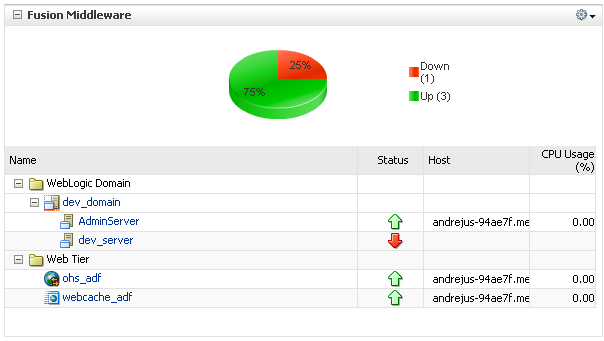
You can verify successful configuration from Oracle Enterprise Manager - HTTP Server (OHS) and Web Cache should be Up:


9. ADF 11g application compression and caching

In this step, we will configure couple of ADF parameters, in order to enable static content compression and caching.

First, let's check Oracle Application Development Framework Performance Tuning Guide. In View performance section, they talk about Disable resource debug mode:

When resource debug mode is enabled, the HTTP response headers do not tell the browser (or WebCache) that resources (JS libraries, CSS style sheets, or images) can be cached. Disable the org.apache.myfaces.trinidad.resource.DEBUG parameter in the web.xml file to ensure that caching is enabled.

Ok, so make sure you disable this parameter, it is disabled in my sample football application.

Next, we should enable ADF Faces Caching Filter, as it is described in ADF Faces Configuration guide. Provided sample application is enabled with ACF filter in web.xml, it defines compression and caching rules for Java Script and JPG files in adf-config.xml file.

Sample application WAR deployment properties specify Java EE context root as football, we need to remember it for future configurations:


10. ADF 11g application deployment

Deploy sample application to WebLogic Managed Server, or Admin Server - no big difference in this case.

11. HTTP Server configuration

Web Cache is configured to be used with HTTP Server automatically, we don't need to do anything for this, unless you need specific configurations. What we need to do is to point HTTP Server to WebLogic server, specifically to our ADF application deployed on WebLogic server.

We need to do this, because from now we will access application through HTTP Server, not directly. This will allow us to use HTTP Server and Web Cache functionality to improve application runtime performance.

Let's configure it using Oracle Enterprise Manager. Open HTTP Server home screen and go to Administration -> mod_wls_ohs Configuration menu:


There you will need to specify following parameters for successful WebLogic proxy:

WebLogic Host: localhost (in my case)
WebLogic Port: 7003 (Managed Server port in my case)
Expression: *.jsp
Location: /football (Java EE Context Root for deployed ADF 11g application)
WebLogic Host: localhost (in my case)
WebLogic Port: 7003 (Managed Server port in my case)


HTTP Server default port is 7777. This means when user will access 7777 port with location /football, HTTP Server will open proxy connection to WebLogic Server, where application is deployed.

Make sure you restart opmnctl instance, in order to apply changes:


12. Application testing

Application is deployed on WebLogic Managed Server port 7003. However we will access it through HTTP Server 7777 port, in order to go through Web Cache:


Now you can see, why I called this application - football. I'm loading my pictures of football World Cup Johannesburg stadium into ADF 11g Carousel component - to see what performance improvements will bring HTTP Server and Web Cache.

During first request (Internet Explorer), ADF Java Script is loaded together with World Cup stadium images, you can see this from the log:


During next requests, or even when opening another browser session, ADF Java Script and images are not loaded anymore from WebLogic server, but retrieved from cache - only ADF lifecycle related requests are invoked:


If I open the same application from another browser (Firefox for example), ADF Java Script and images are loaded again:


You can see there are more Java Script files loaded for Firefox browser, thats interesting. And then it is the same as in IE case, for all following requests, static content is not loaded anymore from WebLogic server:


This should help to improve ADF 11g applications performance, especially on public internet, where connection speed is slow - because static content compression. Content caching will improve ADF11g application performance by reducing the load on the backend systems, which in turn means you can serve more users or service the requests more quickly.

Update 2012/04/29:

If you will configure Web Cache in ADF 11g R2, in web.xml change filter class from oracle.adfinternal.view.faces.caching.filter.AdfFacesCachingFilter to oracle.adf.view.rich.webapp.AdfFacesCachingFilter.

Update 2010/06/09:

I got very good advice from Angelo Santagata, he suggested that we can compress jsp pages as well with WebCache. This will significantly reduce network traffic - Web pages will be compressed. In order to compress jsp, open Caching Rules menu in WebCache 11g:


Declare new caching rule with enabled compression for file extension .jsp:


New rule will be available in the list: