Tuesday, August 18, 2015

Smart Combo Box LOV with Filter

Combo box LOV with filtering is simple, but effective feature not used often. You should rethink LOV design and apply combo box LOV with filtering where possible. Advantage of such LOV implementation is pretty clear - fast list items access, based on filter criteria. This will reduce number of times required to open LOV popup and improve performance of UI.

LOV VO should implement View Criteria, returning top items to be included into choice list. My example retrieves all jobs with minimum salary greater or equal than 10000. Users will see list items based on this criteria first:


I would recommend to use List UI Hints section of the LOV VO to define LOV UI definition. This will save time when assigning LOV for the attributes, do it once and reuse. I have specified Combo box LOV with filtering based on View Criteria - to include jobs with minimum salary greater than 10000 into initial choice list:


Time is saved when assigning LOV for the attribute - UI Hints are automatically set, based on LOV UI Hints definition:


This is how it looks on UI. Top records are displayed in the choice list, based on applied filter criteria.  All list items can be accessed through More... option:


This is how LOV popup looks by default in ADF 12c. Height is stretched automatically to occupy all possible display height, width is not stretched. Such layout is not good, users don't like it:


LOV popup can be made stretchable with little help of ADF UI CSS. We should use -tr-stretch-search-dialog CSS property to enable LOV popup stretching in ADF 12c (CSS sample is provided with example):


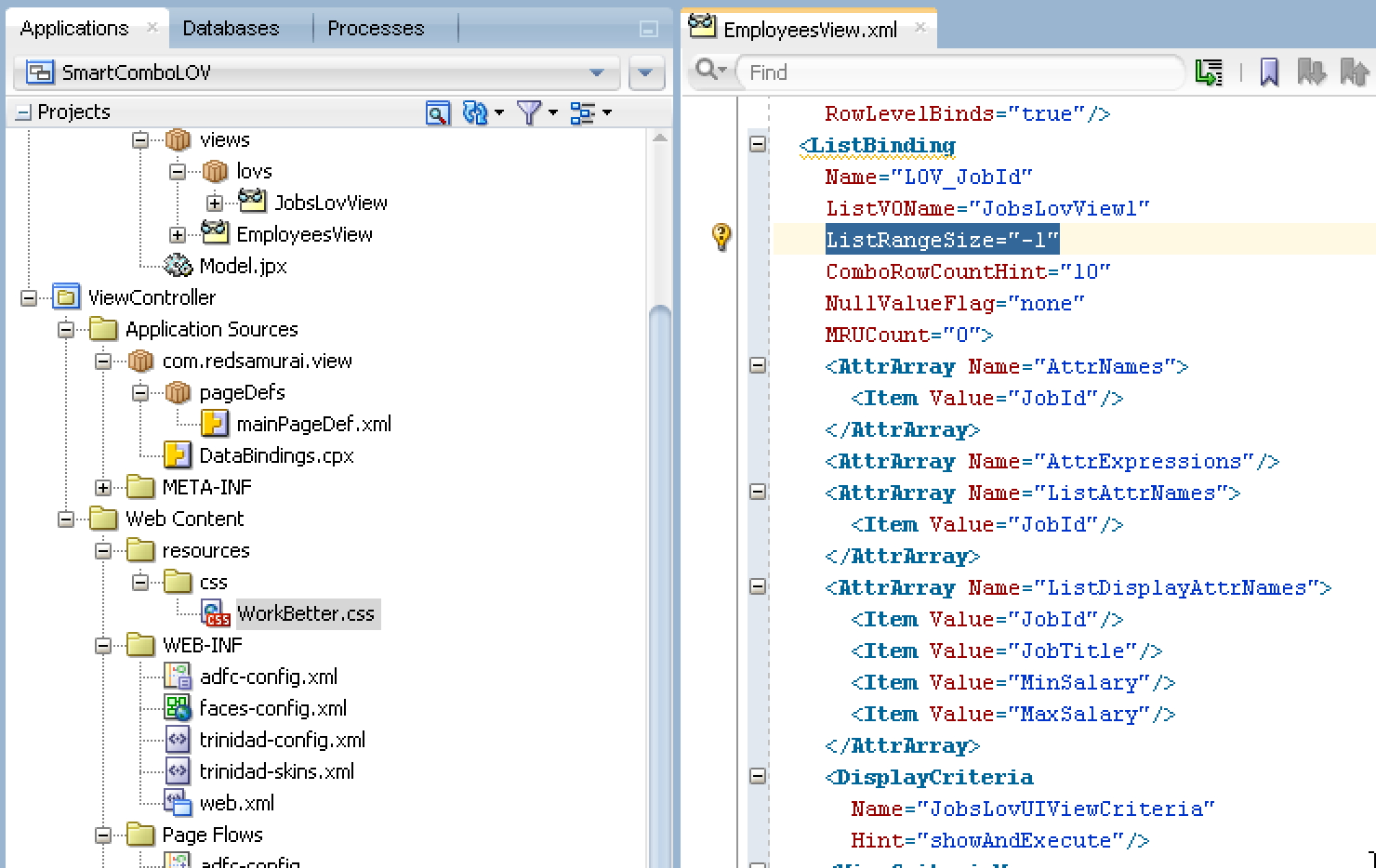
Another important thing to remember about LOV's in ADF 12c - List Range Size property. By default it is being set to -1. This is OK for simple choice lists, where you would like to show all data at once. But not suitable for LOV or combo with LOV, where we don't want to fetch all LOV items at first load:


I would set it to 10, this will populate only visible set of LOV records:


Take a look, how LOV popup window will look after improvements applied - it is stretchable by the user and only initial set of list item records is fetched:


Make sure to use combo LOV with initial filter criteria, to optimise LOV behaviour. Download sample application - SmartComboLOV.zip.

Thursday, August 6, 2015

Tabs Layout Support in Alta UI Tablet First Template

Tablet First Template in ADF 12c is ideal for both tablet and desktop. Combined with Alta UI layout, it offers light and responsive UI experience to the end users. I'm going to describe in this post, how to use ADF Faces Tabs with Alta UI in Table First template. I will show ADF regions are friendly with Web like UI design, without internal scrollbars in the page.

Page can be created referencing Tablet First template with JDeveloper wizard, same as we would use it to create page based on UI Shell template:


Table First template provides multiple facets, Central facet is supposed to contain main content. I'm going to include two ADF Faces UI tab components into central facet. Both tabs will render ADF regions:


Unfortunately it doesn't work properly. Tabs are rendered in the centre of the page:


Luckily there is a fix. We should apply special CSS style class, provided with Oracle WorkBetter Alta UI application - ContentContainerWorkaround. This class must be set for ADF Faces UI panel tabbed component:


After CSS style class fix is applied, tabs are rendered correctly:


I have implemented second tab - Employees Table to test how large ADF UI table renders in Tablet First Template. Table is set with page scroll policy:


ADF region renders table without internal scrollbar, it looks Web style alike:


There are more rows, than can fit into screen. User can scroll down entire page to see the remaining rows. This is especially good for tablet screens, ADF provides really good UI experience:


Download sample application - ADFAltaApp_v2.zip.

Friday, July 31, 2015

Oracle Mobile Cloud Service First Hands-On Experience

Thanks to SOA Community and Jurgen Kress, I had a chance to play with Oracle MCS (Mobile Cloud Service). This new Oracle product is promoted with full force by Oracle PM team, there is dedicated Youtube channel with videos to watch and learn - Oracle Mobile Platform. Mobile Cloud Service offers mobile enterprise repository to organize and support your mobile development. Mobile backend services, security, connectors, storage and etc. can be defined and managed in MCS. Web Services published in MCS can be monitored to track performance and errors. All this should simplify mobile solutions implementation.

This was my first encounter with MCS and I would like to describe the test I did. MCS UI is implemented with Oracle internal JS framework following Alta UI standard. There are options to monitor and administer MCS instance. I'm more interested in development options:


I will not go through all available options, but only focus on Mobile Backend. Basically we can define a group, where we could include various reusable business logic artefacts (API's). Mainly this will be different Web Service calls. The same Web Service calls can be reused by mobile application developer.

In Mobile Backend section we can edit existing groups or create a new one:


You should think about Mobile Backend as about a group of reusable code artefacts (API's). There is an option to create new API or reuse existing one. I decided to reuse existing API for Incidents registration:


This API implements REST Web Service call to register new incident, also it allows to query information about previously reported incidents. This can be tested directly in MCS environment, we could define sample payload data and simulate Web Service call to register new incident:


Web Service call is successful, we can observe this from the log - new incident is registered and ID is assigned. Same Web Service will be reused from mobile application. With MCS we could monitor Web Service usage, number of invocations, errors, etc. - this makes it easier to manage entire infrastructure for mobile solutions:


To make sure new incident was successfully registered, I could run another REST call for the same Web Service - to get incident information about ID:


Result shows incident data, this means incident was located successfully:


Incidents registration service is registered in API's group, we could edit and test this Web Service online in MCS:


Red Samurai mobile backend service is live - invocation statistics and processing time metrics are aggregated by MCS:

Thursday, July 30, 2015

Using Shared AM to Cache and Display Table Data

This post is based on Steve Muench sample Nr. 156. In my personal opinion, ADF samples implemented by Steve Muench still remain one of the best source of examples and solutions for various ADF use cases. Sample Nr. 156 describes how to use Shared AM to display cached data in UI table. Typically Shared AM's are used to implement cached LOV's (session or application scope). But it could go beyond LOV, based on the use case we could display cached data in the table or form. I have tested this approach with 12c and it works fine.

Download sample application - ADFBCSharedSessionLOVApp.zip. AM is defined with application scope cache level - this means cached data will be available for multiple users:


In order to display cached data on UI and pass it through ADF bindings layer, we need to use Shared AM configuration in bindings:


You should create new Data Control reference entry manually in DataBindings.cpx file. JDeveloper doesn't provide an option to select Shared AM configuration. Simply change configuration property to Shared (HrModuleShared as per my example):


Make sure to use correct Data Control entry for iterator in the Page Definition. Cached table iterator binding should point to shared Data Control configuration:


This is how it looks like on UI - readonly table data is fetched once and cached in application scope cache. Other users will be reusing cached data, without re-fetching it from DB:


Jobs VO is set with AutoRefresh = true property. This turns on DB change notification listener mechanism and keeps VO data in synch, when changes happen in DB. This helps to auto refresh cached VO (read more about it Auto Refresh for ADF BC Cached LOV):


Here is the test. Let's change Job Title attribute value in DB:


Click on any row from Jobs table, or use any buttons (make a new request). Cached VO will be re-executed and new data will be fetched from DB, including latest changes:


You should see in the log, DB change notification was received and VO was re-executed, VO data was re-fetched:

Tuesday, July 21, 2015

Oracle Process Cloud Application Player

With Oracle Process Cloud you can forget these days when you was waiting long to deploy BPM process and test Human Task UI. No need to wait anymore, in Oracle Process Cloud you could use Application Player feature, this allows to run the process and test Human Task UI almost instantly.

To demonstrate Application Player functionality, I have implemented basic process of Data Entry for the Claim Handling:


This process is using Web Form in the Start activity to capture data, human activity Claim Expense Review allows to review entered data, before submitting it:


This is how Web Form UI design looks like:


When you build Web Form and arrange UI components, business type is constructed automatically, no need to define anything separately. Business type can be used in the process, without changing it:


Data object variable is assigned to the process activity element through Association dialog in Process Cloud, this is where you can map input/output with business type:


Once process is ready to be tested, all you need to do is to invoke Application Player. Click on Test Application button in the top right corner:


In the Test Application window you should select Play option:


To show how it works, I have recorded a video - see yourself how helpful is Application Player:

Thursday, July 16, 2015

Auto Refresh for ADF BC Cached LOV

You can configure auto refresh for ADF BC cached LOV and this works out of the box, no special coding is needed. My previous post describes how ADF BC session cached LOV behaves - ADF BC Session Cached LOV - Understanding Expire Time. Auto refresh can be configured for both application and session caching. One important thing - auto refresh doesn't work when ADF BC is configured with disconnected mode (ADF BC Tuning with Do Connection Pooling and TXN Disconnect Level). I would guess this is related to DB notification listener, it can't notify about DB changes, when DB connection is being taken from AM.

Make sure to remember to configure AM without disconnected mode. Auto refresh works for both application and session caching levels:


As a reminder - in order to use shared LOV functionality, you must select VO instance for LOV from shared AM configuration. See how it looks in the LOV definition wizard:


Auto refresh functionality is enabled with a single property - AutoRefresh = true. This can be set through VO general properties or directly in the VO source code:


Make sure Disconnect Application Module Upon Release option is not set:


I have overriden VO method processChangeNotification for logging purposes, this method is invoked automatically for VO's set with AutoRefresh = true. No need to code anything here, I'm just logging method invocation:


Let's do a test. First of all, check entries of Job list:


Go to DB and update one of the entries. For example, change Stock Clerk title and commit changes:


Come back to UI and press any button. This will trigger new request and Jobs list shared VO will be notified about DB change to refresh:


Check the list again, you should see changed entry for Stock Clerk:


In the log we can observe a call for change notification, it triggers shared LOV query re-execution and data re-fetch:


See recorded demonstration video, where I show refresh behaviour live:


Download sample application - ADFBCSharedSessionLOVApp.zip.