Friday, September 25, 2015

Master-Detail Pattern Implementation in ADF 12c Alta UI

ADF 12c and Alta UI change the way how we used to implement UI in ADF. Let's take a look into Master-Detail. Before Alta UI usual implementation for Master-Detail would be based on vertical layout with master on the top and details below. Alta UI provides different patterns like left-right, bottom-top for Master-Detail implementation - Oracle Alta UI Patterns. I would recommend to watch a demo from Shay Shmeltzer, he explains how to build left-right Master-Detail - Developing Your First Oracle Alta UI page with Oracle ADF Faces. In my post I'm taking a step further and explaining how to manage Master-Detail relationship between different regions.

Here you can watch a demo of sample application developed for today post:


Country list on the left acts as a menu. User can select any country and this will force regions displayed in the central area to refresh and show information based on selected country. I'm keeping regions in synch without Contextual Events, using simple solution described in this post - Simple (Effective) Refresh Approach for ADF Regions.

Selection changes in Menu region trigger list filtering in Employees Directory tab:


Detail data displayed in Profile tab is also filtered. In the top block is displayed additional information for Master record. Employees from selected country are displayed in the form with navigation controls. Overview block displays information about all employees from selected country:


If country selection is changed, detail data is refreshed to stay in synch:


Administration tab contains table with pagination support, also filtered based on Master record change in countries:


Countries menu block is implemented in separate region. Selection listener is overwritten to process menu item selection:


Listener updates session scope variable with a key of selected country. Region refresh approach is implemented based on the method described in the post mention above:


Content region is implemented by TF with a router. Here we check if Country ID TF input variable is not empty and execute detail records filtering:


Country ID is defined as TF input parameter:


Session scope variable updated by Countries menu listener is set as a input value for region parameter. Each time when session scope variable is changed (new country is selected), region with such input parameter will be refreshed:


Region will be refreshed, only if Refresh property will be set to ifNeeded:


It might be enough to reload only one region. If another region contains PPR supported components (tables, forms) - data can be reloaded automatically with ChangeEventPolicy = ppr set for iterator:


Download sample application - ADFAltaApp_v10.zip.

Thursday, September 17, 2015

Use Case of Auto Re-Execute Functionality in ADF BC

There are use cases, when data in DB is changed by background processes and we would like to display to the user latest data available. Very common implementation for this use case is to re-execute ADF iterator and VO each time when Task Flow or UI screen is accessed. Obviously this works, but performance would suffer - usually there is no need to re-fetch data each time, it must be re-fetched only when changes are detected in DB. ADF BC provides out of the box such functionality - it can detect changes in DB and re-execute VO through Database Change Notification. Make sure to grant CHANGE NOTIFICATION system privilege to the data source user.

Auto refresh functionality for ADF BC VO is working when DB pooling is disabled in AM tuning. This would mean you should use Auto refresh carefully and plan dedicated AM's.

I'm going to describe the use case and how you could benefit from VO auto refresh. Here is the example of typical ADF Task Flow with initial Method Call to re-execute VO and fetch fresh data from DB. In the next step UI fragment is rendered, where recent data is displayed:


This is how it works on UI. Departments TF is accessed by pressing Departments button in Employees table screen. This will trigger Execute action call in Departments TF and force VO to reload:


List of Departments will display recently fetched data from DB:


Each time when Departments TF is opened, VO executes SQL query and re-fetches data. This can be observed from the log:


While this works fine, it is not great from performance perspective. We should improve it by using VO auto refresh functionality. Change default activity in TF to UI fragment, we don't need to invoke VO re-execute:


Select AutoRefresh=true property in the VO settings, this will enable DB listener event for this VO and will force re-execution only when it is required:


We are ready to test it. Change Department Name column value:


Navigate to Departments from Employees table:


New data will be displayed automatically in Departments list, even without invoke initial Execute operation. If you would open the same TF, when there were no changes in DB, it will load data from cache, without re-executing VO and re-fetching the same data rows:


Download sample application - ADFAltaApp_v9.zip

Tuesday, September 15, 2015

ADF BC Inline View Criteria for Hierarchical Search

ADF BC View Criteria allows to implement Inline View Criteria to execute hierarchal search. This is especially useful, when you have Master-Detail relationship and want to filter Master records, based on attribute value from Detail. Keep in mind, Inline View Criteria for hierarchical search would not work, if VO is based on custom SQL query. It works only with declarative VO's.

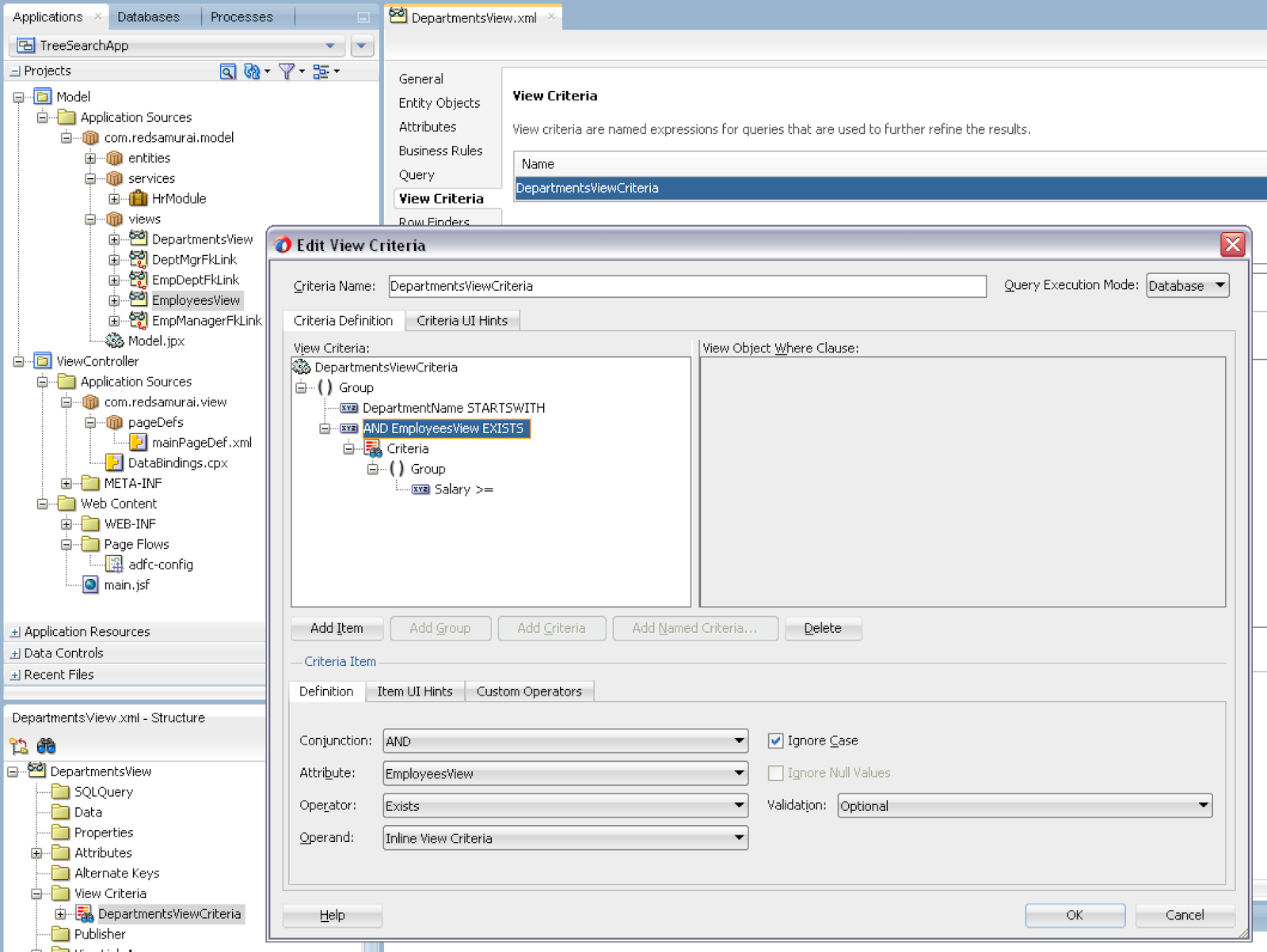
This is how View Criteria with detail search option looks like. If there is View Link available, you can select depend VO from the list of attributes. JDeveloper automatically sets Inline View Criteria option and you can select any attribute from detail VO. All criteria attributes will be rendered in the single search block on UI:


Inline View Criteria is created based on View Link:


Make sure not to use custom SQL based VO, Inline View Criteria would work only with declarative or not custom SQL based VO:


Search filters Master results (departments), based on Detail filtering (employees). I'm searching for employees with salary greater or equal to 12000. This query returns only those departments, where employees with such salary are available:


If I search with lower salary, more departments are present in the result:


Download sample application - TreeSearchApp.zip.

Tuesday, September 8, 2015

ADF Alta UI 12c Responsive Layout Template

Alta UI in ADF 12c with combination of Tablet First template provides support for responsive UI. Often you would like to implement extra functionality for responsive layout, not available out of the box. I'm going to describe in this post, with very practical example, how this can be achieved. I will implement desktop and tablet view support with adjusted menu structure and header.

Tablet First template is shipped with ADF 12c and provides different facets (UI blocks) where developer could implement menu, content, header and footer. We could use CSS media query to dynamically react to the screen changes and adjust facets accordingly. In order to use CSS media query in the template, we need to have access to the Tablet First template code. This is easily achievable by creating custom UI template, based on out of the box Tablet First template. In the template creation wizard select Copy Existing Template option, this will copy template source code and you could adjust it:


This allows to save time and implement CSS media query in the template. If screen size is less than 950px, we are going to render narrow layout and vice versa:


Header area is going to be rendered for larger screens only, to save screen space on smaller ones. Wide style is assigned for the header block, this means with narrow CSS style it will stay hidden:


Wide CSS style is assigned to the core structure of the template - menu block, end and central block are displayed here:


Narrow CSS style is set to render UI structure suitable for tablet screen. Menu width is fixed to 30px, limiting size available for the menu:


Let's take a look at page based on the template. We are using different facets, but same regions are being reused in different UI blocks. Menu block for wide and narrow UI is using same region. This allows to reuse business logic, no matter on what screen UI is being rendered:


Same applies for central content block, same regions are being reused for wide and narrow UI.

ADF UI with narrow layout designed for tablet:


User clicks on menu icon and panel drawer loads menu list:


Wide layout renders menu on the left and it also displays header block:


Not only a list, but also editable form can be displayed pretty nicely with narrow layout:


Download sample application - ADFAltaApp_v8.zip.

Tuesday, September 1, 2015

ADF 12c Dynamic Forms with ADF BC UI Categories

ADF 12c offers completely new way to implement UI forms. We can implement dynamic forms, based on static ADF BC components. Such approach could simplify form maintenance - when there will be changes in DB, developer would need to adjust only ADF BC EO/VO structure, without changing anything on UI. Bindings layers could determine data structure dynamically and dictate how to render UI blocks. ADF BC VO provides special metadata option to define how form UI should be rendered - UI Categories. Through categories we could group attributes and this would help to render dynamic UI with separate blocks and proper order.

Using UI Categories is straightforward, add category group and move attributes under the category. Label and tooltip can be defined, this will be a title for UI block:


ADF 12c is using general collection binding for dynamic UI, it doesn't depend on specific attribute binding:


Collection binding is generic, without a list of accessible attributes, it just points to the VO. This means we can change list of attributes registered in the VO at any time:


This is how looks dynamic form generated in ADF 12c. I have customised it a bit, but major part is generated automatically by JDeveloper 12c. There is global iterator over UI Categories, rendered UI blocks. Inner iterator renders UI Category attributes. Each attribute is rendered through ADF 12c dynamic component, this means there is no dependency related to attribute UI implementation (input text, LOV, choice list, etc.) - UI implementation is controlled from attribute UI hints in ADF BC:


It is easier to understand how dynamic form is organised from UI structure view:


This is the result - dynamic form is rendered with two blocks, based on defined UI Categories:


I have customised dynamic form rendering with metadata usage. Buttons are rendered only in the first block, identified by PersonalData:


Block identified by JobData is rendered with maximum 4 rows:


I hope this post will give you some new ideas about robust ADF UI implementation. Download sample application - ADFAltaApp_v7.zip.

Thursday, August 27, 2015

Red Samurai ADF Performance Audit Tool v 4.0 - Web Client Request Monitoring and Complete Query Analysis

I'm excited to announce, we have released a new version of our RSA audit tool. This is a major update after previous version released in February 2015 - Red Samurai ADF Performance Audit Tool v 3.4 - ADF Task Flow Statistics with Oracle DMS Servlet Integration.

It is already 3 years, since initial version - Red Samurai Performance Audit Tool - Runtime Diagnosis for ADF Applications. We are using it for many of our customers to monitor ADF performance in both test and production environments. Many new features were added during these years, more features to come.

RSA Audit v4.0 New Features

1. RSA Audit v4.0 dashboard is supporting ADF 12c and Alta UI look


2. Web Client Request Time monitoring. Supported with ADF 11g and 12c. Generic method tracks request time for all ADF UI components. Logged data can be analysed through ADF UI dashboard or directly in the DB. Request time represents complete time from user action in the browser, until request is completed. This includes real user experience - browser processing time, network time, server side time and ADF BC/DB processing times. Runs in VERBOSE logging mode


3. Detail information about ADF fragment, button or other ADF UI component involved into request is being logged together with request processing time and is accessible from audit dashboard. This helps to identify slow actions spanning from Web Client to DB


4. Information about each request is grouped, this allows to compare differences between multiple requests and identify bottlenecks in the application performance


5. Duplicate Queries. Allows to track all executed VO’s, very helpful to identify redundant VO’s executions. Groups VO executions per ECID, this helps to identify VO’s re-executed multiple times during the same request. Runs in MEDIUM logging mode


6. VO’s executed from the same ECID are automatically highlighted - this simplifies redundant queries analysis


7. Number of duplicate executions of VO’s per ECID is calculated and presented in the table and sunburst chart


8. We calculate top VO’s per AM. This helps to set priorities for SQL tuning and understand heavy used VO’s


9. Sunburst chart displays visual representation of duplicate and top VO’s per AM