Often we implement solutions to automate ADF development, based on custom metadata stored in database. This is common requirement especially for reporting systems, where screens have very similar layout, just number of UI components differ. Reporting systems require parameters capture screens, each report may have different set of parameters. Instead of building separate ADF UI screen for each report - we can build only one, but dynamic. I will describe how we can achieve this with detail sample application.
I have presented this topic on OOW - OOW'12: Oracle ADF Implementations Around the Globe: Best Practices. It was promised by me to post a blog post with sample application - ADFDynamicReportUI.zip.
This sample consists four dynamic elements:
1. Dynamic VO
2. Two dynamic LOV's
3. Dynamic ADF UI Form

There is one proxy VO (read here about proxy VO concept - Proxy ViewObject and Dynamic Editable UI in ADF). This VO gets substituted by dynamic VO on runtime. I'm using this VO to be able to define iterator reference in page definition:

AM offers Client Interface method, this method is invoked from ADF Controller and is the main method responsible for dynamic structure construction:

First thing what this method does - dynamic VO creation along with the attribute creation. Select statement is defined from Dual, aliases for each of the attributes with default values are included (this typically will be retrieved from metadata). We have option to set different properties for the attribute - type, label, mandatory flag, etc.:

Next - LOV View Objects are created along with View Accessors. You should notice that second LOV is created with bind variable (Departments LOV will be filtered based on Location ID). All of this is done dynamically and can be based on custom metadata:

Sequence of the steps is important. LOV mapping with main VO attributes must be done after all View Accessors are defined. Here we map LOV's with attributes and also set LOV display type (Combo, LOV):

Last step - proxy VO is substituted with our dynamic VO:

Take a look now into helper method for LOV View Object creation. If SQL statement contains bind variable, you must set LOV View Object binding style to be BINDING_STYLE_ORACLE_NAME - otherwise will get error on runtime, related to bind variable index. If there are any bind variables, all of them must be defined:

There is another helper method, where View Accessors are defined. If LOV have bind variables, View Accessor bound attributes must be defined here. LOV metadata is constructed here also:

LOV metadata helper method constructs LOV representation:

Dynamic ADF BC code is invoked from ADF Controller, before fragment is accessed - through the custom method invocation:

On ADF UI we are using standard ADF component for dynamic UI - Dynamic Form:

This component is very good, because it doesn't require static attribute mapping in page definition, it allows to render dynamic ADF UI directly from iterator defined in page definition:

We can get parameters from UI easily, by accessing iterator from page definition:

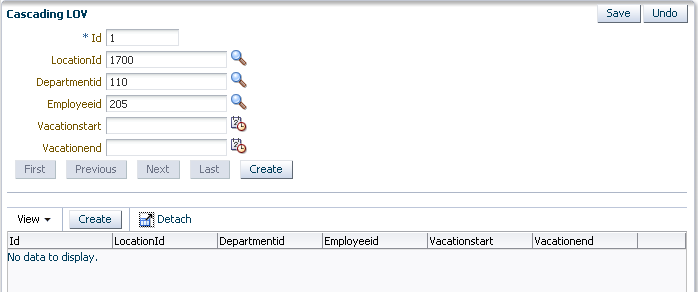
Here you can see how dynamic ADF UI is rendered from dynamic ADF BC. Even validation is enforced, also choice list and LOV UI components are displayed:

Department Id is dependent on Location Id, change Location Id value:

Department Id LOV will be filtered by Location Id bind variable:

All this is generated dynamically from bottom to top:

Values are access and printed in the managed bean, from current row retrieved through the iterator:

I have presented this topic on OOW - OOW'12: Oracle ADF Implementations Around the Globe: Best Practices. It was promised by me to post a blog post with sample application - ADFDynamicReportUI.zip.
This sample consists four dynamic elements:
1. Dynamic VO
2. Two dynamic LOV's
3. Dynamic ADF UI Form

There is one proxy VO (read here about proxy VO concept - Proxy ViewObject and Dynamic Editable UI in ADF). This VO gets substituted by dynamic VO on runtime. I'm using this VO to be able to define iterator reference in page definition:

AM offers Client Interface method, this method is invoked from ADF Controller and is the main method responsible for dynamic structure construction:

First thing what this method does - dynamic VO creation along with the attribute creation. Select statement is defined from Dual, aliases for each of the attributes with default values are included (this typically will be retrieved from metadata). We have option to set different properties for the attribute - type, label, mandatory flag, etc.:

Next - LOV View Objects are created along with View Accessors. You should notice that second LOV is created with bind variable (Departments LOV will be filtered based on Location ID). All of this is done dynamically and can be based on custom metadata:
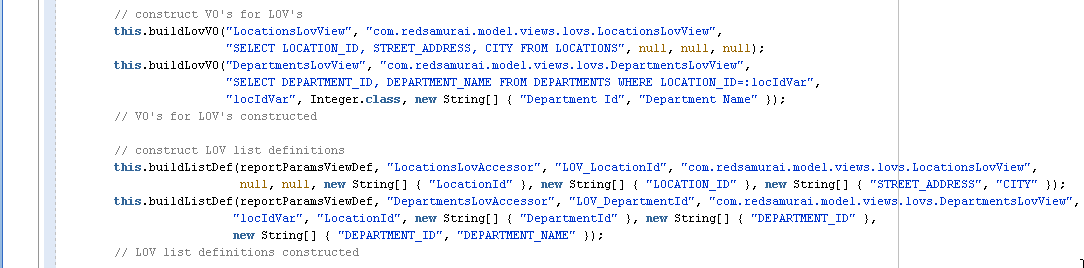
Sequence of the steps is important. LOV mapping with main VO attributes must be done after all View Accessors are defined. Here we map LOV's with attributes and also set LOV display type (Combo, LOV):

Last step - proxy VO is substituted with our dynamic VO:

Take a look now into helper method for LOV View Object creation. If SQL statement contains bind variable, you must set LOV View Object binding style to be BINDING_STYLE_ORACLE_NAME - otherwise will get error on runtime, related to bind variable index. If there are any bind variables, all of them must be defined:

There is another helper method, where View Accessors are defined. If LOV have bind variables, View Accessor bound attributes must be defined here. LOV metadata is constructed here also:

LOV metadata helper method constructs LOV representation:

Dynamic ADF BC code is invoked from ADF Controller, before fragment is accessed - through the custom method invocation:

On ADF UI we are using standard ADF component for dynamic UI - Dynamic Form:

This component is very good, because it doesn't require static attribute mapping in page definition, it allows to render dynamic ADF UI directly from iterator defined in page definition:

We can get parameters from UI easily, by accessing iterator from page definition:

Here you can see how dynamic ADF UI is rendered from dynamic ADF BC. Even validation is enforced, also choice list and LOV UI components are displayed:

Department Id is dependent on Location Id, change Location Id value:

Department Id LOV will be filtered by Location Id bind variable:

All this is generated dynamically from bottom to top:

Values are access and printed in the managed bean, from current row retrieved through the iterator: