Showing posts with label CRUD. Show all posts
Showing posts with label CRUD. Show all posts
Sunday, September 4, 2022
Python Django Model Form - Django CRUD, part 2
I explain how to generate UI in Django on top of Model Form. You can define Model Form with Django Model and inherit model attributes and constraints. Model Form makes it simple not only to render the form, but also control validation and data processing phases.

Monday, August 29, 2022
Python Django CRUD part 1 - Data Model and Constraints
In this episode of Django CRUD, I will explain how to define a data model in Django and set up constraints to ensure data validity. These constraints will be applied automatically when data will be updated from the UI.
Thursday, September 7, 2017
Oracle JET Simple Table with Fake JSON Server
What if you want to build JET UI, but there is no back-end REST service ready yet. You could use static JSON data inside JET app and load it from the JSON file. This works, but data retrieval logic will need to be changed after REST service will be ready. This is not productive. Ideally you would like to have fake REST service to simulate REST calls from JET UI, until real REST back-end is ready.
This can be achieved with JSON Server. It provides full fake REST API to be used by front-end client. It is extremely easy to setup JSON Server with NPM. Run npm install to setup JSON Server:
npm install -g json-server

Create simple JSON file with data structure - this will be served from JSON Server:

Run JSON Server with this command, pointing to JSON file:
json-server --watch db.json

You should see REST endpoint URL displayed in the log. Use this URL in JET application to define collection:

JET CollectionTableDataSource can be created on top of collection backed by REST:

JET UI table component renders data directly from CollectionTableDataSource:

Table UI is rendered based on REST call:

To verify REST call, go to developer console and check network request. You should see request executed against fake JSON Server:

Response is visible too:

Download JET sample application with JSON file for JSON Server from my GitHub repository - jetsimplecrud.
This can be achieved with JSON Server. It provides full fake REST API to be used by front-end client. It is extremely easy to setup JSON Server with NPM. Run npm install to setup JSON Server:
npm install -g json-server

Create simple JSON file with data structure - this will be served from JSON Server:

Run JSON Server with this command, pointing to JSON file:
json-server --watch db.json

You should see REST endpoint URL displayed in the log. Use this URL in JET application to define collection:

JET CollectionTableDataSource can be created on top of collection backed by REST:

JET UI table component renders data directly from CollectionTableDataSource:

Table UI is rendered based on REST call:

To verify REST call, go to developer console and check network request. You should see request executed against fake JSON Server:

Response is visible too:

Download JET sample application with JSON file for JSON Server from my GitHub repository - jetsimplecrud.
Saturday, November 19, 2016
Oracle JET CRUD - Search and Edit Form - Part I
I'm going to post a series of articles about CRUD functionality (on top of ADF BC) implementation in JET. I already had a couple of posts about JET CRUD implementation, this new series will bring improved and simplified structure for JET code implementation.
Today I will start with explanation and example how to pass selected object ID from search screen into edit screen. I have uploaded complete sample (with ADF BC and JET) into GitHub repository. Download ready to be run code or browse it directly from GitHub repository.
There are two essential parts to understand, when you implement search/edit form.
1. How to get selected object ID
I have implemented read-only table where user could select a record and navigate to edit form. JET table is enhanced with template. Each row renders edit action link. When this link is pressed, it calls our custom editCustomer function and also it sends across a key value from selected row (EmployeeId):

Inside editCustomer function we can access key parameter value and store it into JET router (this will make it accessible from another JET module, where we navigate for editing - editCustomer):

2. How to use selected object ID for edit
Edit module contains initialize function. It gets invoked automatically, each time we navigate to edit screen. Inside this function we can can access and retrieve parameter value stored in JET router. It can be used to fetch data model for editing:

This is how it looks like. User can select a row in JET table (enabled with pagination) and click on edit action:

Edit module will be loaded and data will be fetched for editing by key passed through JET router:

Today I will start with explanation and example how to pass selected object ID from search screen into edit screen. I have uploaded complete sample (with ADF BC and JET) into GitHub repository. Download ready to be run code or browse it directly from GitHub repository.
There are two essential parts to understand, when you implement search/edit form.
1. How to get selected object ID
I have implemented read-only table where user could select a record and navigate to edit form. JET table is enhanced with template. Each row renders edit action link. When this link is pressed, it calls our custom editCustomer function and also it sends across a key value from selected row (EmployeeId):

Inside editCustomer function we can access key parameter value and store it into JET router (this will make it accessible from another JET module, where we navigate for editing - editCustomer):

2. How to use selected object ID for edit
Edit module contains initialize function. It gets invoked automatically, each time we navigate to edit screen. Inside this function we can can access and retrieve parameter value stored in JET router. It can be used to fetch data model for editing:

This is how it looks like. User can select a row in JET table (enabled with pagination) and click on edit action:

Edit module will be loaded and data will be fetched for editing by key passed through JET router:

Sunday, September 7, 2014
Calculating HTML ID for ADF UI Table Row
Each row in ADF UI table is assigned with ID, this is how rows are referenced in HTML. I had a blog post describing how to set a focus for newly inserted row - Improving ADF UI Table CRUD Functionality with Auto Focus. I'm getting ID for selected row using getClientRowKey method and this method returns row identifier, the one which is used in HTML. Blog reader was trying to use the same method to get ID for any row from the table, but it didn't worked for him. The trick is how to construct a key properly, to use this key to retrieve ID. I'm going to describe it in this quick sample application below.
Sample application UI is straightforward - there is Get Cell Component Name button, when pressed it calls a listener method and prints IDs for each row in CompName column:

Row ID's are retrieved correctly, you can see it from the picture below. With the access to the ID, you could set focus for any row cell you want, not only for the cell from current row as in previous post. Printed row ID's:

You must use getClientRowKey method to retrieve row ID. There must be proper row key supplied, to get correct ID. When you are getting selected row key, there are no issues - but if you want to get ID for any row key, there is one thing to keep in mind. You must wrap row key into a collection (for example, ArrayList). Use this wrapped key to retrieve client row key:

Sample application UI is straightforward - there is Get Cell Component Name button, when pressed it calls a listener method and prints IDs for each row in CompName column:
Row ID's are retrieved correctly, you can see it from the picture below. With the access to the ID, you could set focus for any row cell you want, not only for the cell from current row as in previous post. Printed row ID's:
You must use getClientRowKey method to retrieve row ID. There must be proper row key supplied, to get correct ID. When you are getting selected row key, there are no issues - but if you want to get ID for any row key, there is one thing to keep in mind. You must wrap row key into a collection (for example, ArrayList). Use this wrapped key to retrieve client row key:
Download sample application - ADFTableFocusApp_v2.zip.
Sunday, March 2, 2014
Improving ADF UI Table CRUD Functionality with Auto Focus
Improving and tuning ADF applications performance, doesn't mean only ADF framework technical parameters tuning. Performance tuning could be applied to application UI behaviour. I will use ADF Faces table example in this post, by default when new row is inserted - focus for the new row column is not set, user needs to do one extra click to set focus and start entering data. There is a way to eliminate this extra click and set focus automatically for a column in ADF table row. I will describe generic method to achieve such functionality.
Let's see first, how it works. We have regular ADF Faces table:

Press Create button to insert a new row:

By default, when new row is inserted - focus in the new row column is not set, user needs to do one extra click and set focus by himself. This is improved in my sample application - ADFTableFocusApp.zip, focus in the new row column is set automatically after Create button is pressed (it is configured to set focus in the first column):

It is important to understand, while setting focus for ADF UI table row columns, each row in HTML is assigned with certain ID. This ID is appended to the original inputText component ID, basically the same inputText component is created as many times, as there are rows in the table. Here you can see, new row was assigned with index 25, this is index is not related to row number:

Focus ID - inputText component ID in the first column of a new row. This points to a region, panelCollection, table, row ID and inputText component ID's.
I create one more row:

Focus is set automatically:

This time, row ID was different - I will describe below, how such ID can be retrieved in generic method:

From implementation point of view, there is Create button with JSF attributes. One of the attributes, sets ID of inputText for the focus, second provides action name to be executed. Focus is set through JavaScript function:

There are few changes needed for ADF UI table properties. Make sure to set contentDelivery="immediate" and displayRow="selected" properties, this is needed to ensure focus will be set correctly every time, even when user scrolls through the table:

Sample application implements generic action lister, it reads method to execute from component attribute, as well as UI component ID to apply auto focus. We are locating table binding automatically, getting Client Row Key (this is row ID, I was mentioning in the example above) and constructing final ID to use for the focus. As you can see, method action is executed first, and auto focus code afterwards (we need to have new row inserted initially):

At last, JavaScript method is invoked from Java, to set focus in the row identified by row ID number.
Let's see first, how it works. We have regular ADF Faces table:
Press Create button to insert a new row:
By default, when new row is inserted - focus in the new row column is not set, user needs to do one extra click and set focus by himself. This is improved in my sample application - ADFTableFocusApp.zip, focus in the new row column is set automatically after Create button is pressed (it is configured to set focus in the first column):
It is important to understand, while setting focus for ADF UI table row columns, each row in HTML is assigned with certain ID. This ID is appended to the original inputText component ID, basically the same inputText component is created as many times, as there are rows in the table. Here you can see, new row was assigned with index 25, this is index is not related to row number:
Focus ID - inputText component ID in the first column of a new row. This points to a region, panelCollection, table, row ID and inputText component ID's.
I create one more row:
Focus is set automatically:
This time, row ID was different - I will describe below, how such ID can be retrieved in generic method:
From implementation point of view, there is Create button with JSF attributes. One of the attributes, sets ID of inputText for the focus, second provides action name to be executed. Focus is set through JavaScript function:
There are few changes needed for ADF UI table properties. Make sure to set contentDelivery="immediate" and displayRow="selected" properties, this is needed to ensure focus will be set correctly every time, even when user scrolls through the table:
Sample application implements generic action lister, it reads method to execute from component attribute, as well as UI component ID to apply auto focus. We are locating table binding automatically, getting Client Row Key (this is row ID, I was mentioning in the example above) and constructing final ID to use for the focus. As you can see, method action is executed first, and auto focus code afterwards (we need to have new row inserted initially):
At last, JavaScript method is invoked from Java, to set focus in the row identified by row ID number.
Monday, February 17, 2014
Simple JQuery Notification Message for ADF UI
If you would like to use JQuery in ADF and looking for some simple example, this post if for you. I'm sharing use case of JQuery notification message, displayed after successful commit operation is completed in ADF. Once commit is completed, notification message is displayed for 2 seconds and later it disappears.
Here you can see, how it looks. User successfully saved changed data - notification message is displayed about success - it nicely slides from the top. Message is displayed nicely on top of ADF UI, ADF UI components aren't pushed down:

In a case of failure during commit, for example if validation rule fails or DB constraint prevents data update, no notification about success is displayed - but only standard ADF error message:

JQuery notification message code is taken from the referenced source, we just updated it for better integration with ADF Faces, you can see entire code in the sample application - ADFNotification.zip:

JQuery Java Script library is integrated into ADF application fragment through ADF Faces resource component, just as any other Java Script code:

Notification message is displayed from ADF managed bean, action method. Firstly ADF commit operation is executed, if it returns error - no notification is displayed. Code to display notification message could be generic, as a part of your core framework structure:

I hope this simple example, would help to create even nicer UI's for CRUD applications, implemented with ADF.
Here you can see, how it looks. User successfully saved changed data - notification message is displayed about success - it nicely slides from the top. Message is displayed nicely on top of ADF UI, ADF UI components aren't pushed down:
In a case of failure during commit, for example if validation rule fails or DB constraint prevents data update, no notification about success is displayed - but only standard ADF error message:
JQuery notification message code is taken from the referenced source, we just updated it for better integration with ADF Faces, you can see entire code in the sample application - ADFNotification.zip:
JQuery Java Script library is integrated into ADF application fragment through ADF Faces resource component, just as any other Java Script code:
Notification message is displayed from ADF managed bean, action method. Firstly ADF commit operation is executed, if it returns error - no notification is displayed. Code to display notification message could be generic, as a part of your core framework structure:
I hope this simple example, would help to create even nicer UI's for CRUD applications, implemented with ADF.
Saturday, November 2, 2013
Find By Key and View Criteria Row Finder Methods vs. Get Row Method in ADF BC
You may have seen my previous blog post - WebLogic Stuck Thread Case - Large Fetch Generated by Get Row ADF BC Method. Blog reader was asking if it would be a solution to use instead of Get Row method, alternative methods - Find By Key, or View Criteria. Yes, these two methods perform much better comparing to Get Row, and there is no full intermediate row range scan.
I would like to present updated sample application, where these two methods mentioned above are implemented and tested - LargeFetchApp_v4.zip. Application module implementation class contains two methods, one for Find By Key (intentionally, I'm using key to be at the end of row set) and another for Row Finder based on View Criteria. If I would use View Criteria directly, rowset will become filtered, instead I'm using 12c feature Row Finder, it allows to use View Criteria to search for rows in the current rowset:

I'm using JDEV 12c, this is how Row Finder is defined (you can read more about Row Finder in my previous post - ADF BC 12c New Feature - Row Finder):

Row Finder is using View Criteria, search is done by the same key as in Find By Key method:

We load ADF table and press Find By Key method:

Instead of fetching all rows up to a row with a key 10099 (as it happens with Get Row method), new SQL query is executed and one row is fetched - as we need:

Press Find By Criteria to test second approach with Row Finder and View Criteria:

View Criteria calls new SQL query to search by ID and returns only one row, instead of fetching all rows:

This shows - both method are good enough and perform better than Get Row method. You should choose one of these methods, based on use case requirements.
I would like to present updated sample application, where these two methods mentioned above are implemented and tested - LargeFetchApp_v4.zip. Application module implementation class contains two methods, one for Find By Key (intentionally, I'm using key to be at the end of row set) and another for Row Finder based on View Criteria. If I would use View Criteria directly, rowset will become filtered, instead I'm using 12c feature Row Finder, it allows to use View Criteria to search for rows in the current rowset:

I'm using JDEV 12c, this is how Row Finder is defined (you can read more about Row Finder in my previous post - ADF BC 12c New Feature - Row Finder):

Row Finder is using View Criteria, search is done by the same key as in Find By Key method:

We load ADF table and press Find By Key method:

Instead of fetching all rows up to a row with a key 10099 (as it happens with Get Row method), new SQL query is executed and one row is fetched - as we need:

Press Find By Criteria to test second approach with Row Finder and View Criteria:

View Criteria calls new SQL query to search by ID and returns only one row, instead of fetching all rows:

This shows - both method are good enough and perform better than Get Row method. You should choose one of these methods, based on use case requirements.
Wednesday, October 30, 2013
WebLogic Stuck Thread Case - Large Fetch Generated by Get Row ADF BC Method
This post is not about a bug, but rather about hidden underwater stone to avoid. Based on my previous use case for WebLogic Stuck Thread - Reproducing WebLogic Stuck Threads with ADF CreateInsert Operation and ORDER BY Clause, I will describe one more possible scenario for the same issue. This will be related to ADF BC API misuse, often it is unclear what side effect could produce at first friendly looking method. This method - getRow(key).
Please download complete sample application, if you are interested to reproduce it in your environment - LargeFetchApp_v3.zip.
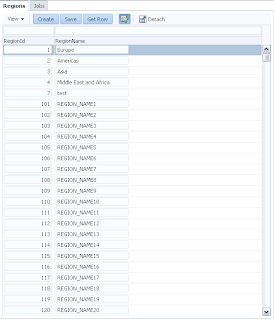
This sample provides a method to generate dummy data for regions, around 10000 rows. View Object is using ORDER BY to display records in ascending order:
There is custom method created in AM implementation class. This method is calling ADF BC API getRow(key) method. Nothing dangerous at first, but here I'm using a key of the last record from the rowset - 10099. You may think, this is just a method to get a row by key. Yes true, but what it does for you - before returning one row by key, it will fetch all rows until this row into memory. It travels through each row one by one, until it gets a row with defined key. This may consume a lot of memory, especially if rowset is large and row with defined key is somewhere at the end of the rowset. Example of such method:

Make sure ADF Logger config is enabled for RegionsViewImpl class:

Press Get Row button to invoke our custom method from above:

You will see - all rows are fetched and loaded into memory, before desired row is located:

If there will be concurrent users executing the same operation, sooner or later there will be Stuck Thread created in WebLogic and application will hang.
By the way, same applies for Last button use case in ADF, you should never use Last button - operation Last is going to fetch all rows in between, until it will get to the last row in the rowset.
Please download complete sample application, if you are interested to reproduce it in your environment - LargeFetchApp_v3.zip.
This sample provides a method to generate dummy data for regions, around 10000 rows. View Object is using ORDER BY to display records in ascending order:

There is custom method created in AM implementation class. This method is calling ADF BC API getRow(key) method. Nothing dangerous at first, but here I'm using a key of the last record from the rowset - 10099. You may think, this is just a method to get a row by key. Yes true, but what it does for you - before returning one row by key, it will fetch all rows until this row into memory. It travels through each row one by one, until it gets a row with defined key. This may consume a lot of memory, especially if rowset is large and row with defined key is somewhere at the end of the rowset. Example of such method:

Make sure ADF Logger config is enabled for RegionsViewImpl class:

Press Get Row button to invoke our custom method from above:

You will see - all rows are fetched and loaded into memory, before desired row is located:

If there will be concurrent users executing the same operation, sooner or later there will be Stuck Thread created in WebLogic and application will hang.
By the way, same applies for Last button use case in ADF, you should never use Last button - operation Last is going to fetch all rows in between, until it will get to the last row in the rowset.
Tuesday, October 22, 2013
Reproducing WebLogic Stuck Threads with ADF CreateInsert Operation and ORDER BY Clause
This is a second post related to WebLogic Stuck Threads. You can read the first one - Evil Behind ChangeEventPolicy PPR in CRUD ADF 12c and WebLogic Stuck Threads. In the previous post, I was describing how to reproduce WebLogic Stuck Thread in ADF 12c, with ChangeEventPolicy = PPR. As per Steve Muench follow up comment, PPR works well, if you are using auto populated primary key. Today post is about something different, reproducible across all ADF versions - WebLogic Stuck Thread in relation to CreateInsert operation and ORDER BY clause usage for VO.
Here you can download test case application - LargeFetchApp_v2.zip. Make sure to set FINEST ADF Logger level for Regions VO Impl class, this will print fetched rows:

Make sure to disable AM Pooling, this will simulate stress test environment, passivation/activation will be happening on every request:

Region ID is set with default value, this is used to make sure new row gets primary key always set:

We set ORDER BY clause for REGION_ID and use DESC operator. This will bring rows with higher numbers first and display them in the top of ADF table. Make sure to use populateTable method (described in the previous post mentioned above) to insert 10 000 rows into REGIONS table:

Press Create button - new row with ID = 7 will be created, not inserted into DB yet:

Use Save button - to finally insert record into DB:

This is important step, new record will be inserted as last record in DB table, however UI displays it in first position. There is ORDER BY DESC set for this VO.
Try to navigate to other tab or do any other request, after record was saved to DB:

You will see in the log 10 000 rows fetched, until row with ID = 7 is found:

This large fetch is so unexpected and causes WebLogic Stuck Threads when multiple users are using application. The reason it fetches suddenly so many records, because new record with ID = 7 is displayed as the first row, but really this row is not retrieved with first range size of 25 top rows, it comes much later by ORDER BY DESC clause logic.
If we would insert new record with a key 10 100, large fetch would not be reproduced, as this row would be qualified to come with first range size of 25 rows.
We change to ASC order and test it again. Remove newly inserted record with ID = 7 from DB:

ORDER BY clause is updated with ASC order, instead of previous DESC - records with lower ID number will appear first:

Repeat the same steps as before, create new row - ID for the key attribute will be set automatically and equal 7:

Save and insert new row to the DB:

New row with ID = 7 is displayed on top, as it was just inserted, but still it will made into range size of the first 25 rows. We can see it from the log, it will 5th row fetched for the first range size:

As new row will be located early in the first range size, there will be no large fetch happening - application will continue to run fast:

I will describe in my next post, how to implement effective CRUD in ADF, taking into account large fetches. Generally this behaviour should be improved in ADF, instead of fetching entire collection of rows to locate needed row - it could do single fetch by key for a row not located in the first range size.
Here you can download test case application - LargeFetchApp_v2.zip. Make sure to set FINEST ADF Logger level for Regions VO Impl class, this will print fetched rows:

Make sure to disable AM Pooling, this will simulate stress test environment, passivation/activation will be happening on every request:

Region ID is set with default value, this is used to make sure new row gets primary key always set:

We set ORDER BY clause for REGION_ID and use DESC operator. This will bring rows with higher numbers first and display them in the top of ADF table. Make sure to use populateTable method (described in the previous post mentioned above) to insert 10 000 rows into REGIONS table:

Press Create button - new row with ID = 7 will be created, not inserted into DB yet:

Use Save button - to finally insert record into DB:

This is important step, new record will be inserted as last record in DB table, however UI displays it in first position. There is ORDER BY DESC set for this VO.
Try to navigate to other tab or do any other request, after record was saved to DB:

You will see in the log 10 000 rows fetched, until row with ID = 7 is found:

This large fetch is so unexpected and causes WebLogic Stuck Threads when multiple users are using application. The reason it fetches suddenly so many records, because new record with ID = 7 is displayed as the first row, but really this row is not retrieved with first range size of 25 top rows, it comes much later by ORDER BY DESC clause logic.
If we would insert new record with a key 10 100, large fetch would not be reproduced, as this row would be qualified to come with first range size of 25 rows.
We change to ASC order and test it again. Remove newly inserted record with ID = 7 from DB:

ORDER BY clause is updated with ASC order, instead of previous DESC - records with lower ID number will appear first:

Repeat the same steps as before, create new row - ID for the key attribute will be set automatically and equal 7:

Save and insert new row to the DB:

New row with ID = 7 is displayed on top, as it was just inserted, but still it will made into range size of the first 25 rows. We can see it from the log, it will 5th row fetched for the first range size:

As new row will be located early in the first range size, there will be no large fetch happening - application will continue to run fast:

I will describe in my next post, how to implement effective CRUD in ADF, taking into account large fetches. Generally this behaviour should be improved in ADF, instead of fetching entire collection of rows to locate needed row - it could do single fetch by key for a row not located in the first range size.
Subscribe to:
Posts (Atom)