Showing posts with label WebLogic. Show all posts

Wednesday, March 28, 2018

ADF on Docker - Java Memory Limit Tuning for JVM

It might look like a challenge to run Java in Docker environment, by default Java is not aware of Docker memory limits. Check this article for example - Java inside docker: What you must know to not FAIL.  I was able to run WebLogic and ADF (Essential WebLogic Tuning to Run on Docker and Avoid OOM) on Docker previously without Java memory issues, using JAVA_OPTIONS=-XX:+UnlockCommercialFeatures -XX:+ResourceManagement -XX:+UseG1GC. However after Docker upgrade to latest version, these settings didn't help anymore. I did't want to hardcode memory setting with -Xmx.

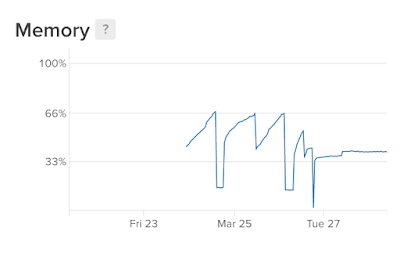
Java started to consume all available memory in Docker and eventually was killed. You can see this from chart below - memory is growing, killed and after restart growing again:


To solve this behaviour, I have applied settings from Java Platform Group, Product Management Blog - Java SE support for Docker CPU and memory limits. I have replaced JAVA_OPTIONS=-XX:+UnlockCommercialFeatures -XX:+ResourceManagement -XX:+UseG1GC set previously with JAVA_OPTIONS=-XX:+UnlockExperimentalVMOptions -XX:+UseCGroupMemoryLimitForHeap -XX:+UseG1GC.

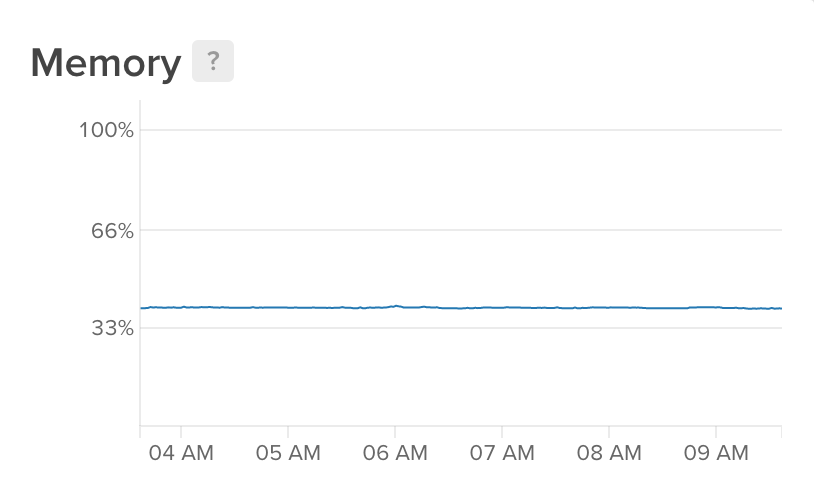
JAVA_OPTIONS=-XX:+UnlockExperimentalVMOptions - XX:+UseCGroupMemoryLimitForHeap -XX:+UseG1GC did the job - JVM stays in Docker memory limits sharp:


This chart shows Java memory behaviour before and after settings were applied. From March 27th - Java memory is a straight line with JAVA_OPTIONS=-XX:+UnlockExperimentalVMOptions - XX:+UseCGroupMemoryLimitForHeap -XX:+UseG1GC:

Sunday, November 5, 2017

Essential WebLogic Tuning to Run on Docker and Avoid OOM

Read my previous post about how to run ADF on Docker - Oracle ADF on Docker Container. Docker WebLogic image is based on official Oracle Docker image for FMW infrastructure - OracleFMWInfrastructure. WebLogic container created based on this image runs, but not for long - eventually JVM process eats up all memory and OOM (out of memory) exception is thrown. This is known issue related to JVM running in Docker container - Running a JVM in a Container Without Getting Killed. Good news - we can switch on WebLogic memory management functionality to prevent OOM error while running in Docker container. This WebLogic functionality is turned on with special flag -XX:+ResourceManagement. To set this flag, we need to update startWebLogic.sh script, but probably we dont want to rebuild Docker container. Read below how to achieve this.

First we need to access startWebLogic.sh script from Docker container. Make sure Docker container on your host is running and execute Docker copy command:

docker cp RedSamuraiWLS:/u01/oracle/user_projects/domains/InfraDomain/bin/startWebLogic.sh /Users/andrejusbaranovskis/infra/shared

This will copy startWebLogic.sh file from Docker container to your host system.

Search in startWebLogic.sh script content and search for resource management config. By default it is commented out. Set this string for JAVA_OPTIONS. This enables WebLogic resource management and G1GC garbage collector:

JAVA_OPTIONS="-XX:+UnlockCommercialFeatures -XX:+ResourceManagement -XX:+UseG1GC ${SAVE_JAVA_OPTIONS}"

startWebLogic.sh script contains comment, where it recommends to enable this option:


Once JAVA_OPTIONS variable is updated, copy startWebLogic.sh script back to Docker container:

docker cp /Users/andrejusbaranovskis/infra/shared/startWebLogic.sh RedSamuraiWLS:/u01/

Enter into Docker container command prompt (in my case user 501 is root user for Docker container):

docker exec -u 501 -it RedSamuraiWLS bash

Change file permissions for startWebLogic.sh:

chmod 777 startWebLogic.sh

Enter into Docker container as oracle user:

docker exec -it RedSamuraiWLS bash

Copy startWebLogic.sh script from u01 into bin folder (overwrite existing script file):

cp startWebLogic.sh /u01/oracle/user_projects/domains/InfraDomain/bin

Stop Docker container and run docker commit to create new image (which includes change in startWebLogic.sh):

docker commit RedSamuraiWLS abaranovskis/redsamurai-wls:v2

Docker image is created with delta change only, this allows to save space. Run docker images command to verify if new image is created successfully:


Run docker push to upload new image version into Docker repository. Upload will happen fast, because it will upload only delta of changes:

docker push abaranovskis/redsamurai-wls:v2

You should see new image version uploaded into Docker repository:


To run container online, we can login into Digital Ocean console and execute docker run command (I'm using container memory limit -m 4g (4 GB)) -  it will pull and run new image:


Once docker container is running, execute top command in Digital Ocean console to monitor memory consumption. Java process memory consumption should not grow, if there is no user activity in WebLogic server:

Monday, March 20, 2017

Red Samurai and Oracle PaaS JCS Success - JET/ADF BC REST Cloud Production Application

I would like to share our success in Oracle PaaS service - Java Cloud (JCS). We have managed to implement JET/ADF BC REST system in short period of time and deploy it in production running on Oracle JCS. UI is implemented entirely with JET, while back-end REST services are running on top of ADF BC. Secure access is controlled by unique ID managed by server side ADF Security.

Production application implements custom invoice processing logic for startup candy factory/distributor in Lithuania. Oracle Cloud doesn't require administration and provides all mandatory services to run custom application. This is primary reason why decision was made to use Oracle Cloud. In the next phase we are going to implement warehouse management logic, tightly integrated with invoice processing.

JET UI

Home screen displays dashboard with financial data for orders, customers and invoice items:


Menu structure (JET Router) is focused around implemented business logic:

1. Dashboard - statistical data display
2. New Invoice - invoice creation module
3. Template Setup - invoice template setup, to speed up invoice creation
4. Invoice Search - search through all invoices
5. Customer Setup - customer data management
6. Supplier Setup - supplier data management

Invoice Search screen implements form block and results table with pagination. This screen is using a set of JET components, starting from input list to responsive UI:


User have option to select invoice for editing. Various invoice fields can be changed in this screen. UI remains responsive and can be rendered on mobile device or JET Hybrid application - this was one of the key requirements:


Invoice items are edited in JET dialog. This is very convenient approach, JET dialog works really fast and allows to switch from one item to another in a quick way:


Development process - Oracle Developer Cloud Service

Application was developed using Oracle Developer Cloud Service. We think Agile boards/sprints defined in DevCS are really helpful. Offered functionality simplifies task management/monitoring process and you can see the progress in the sprint:


DevCS provides Git source control repository, agile board and issue tracking. It also gives you Build Automation. We were using Build Automation to re-build changes committed in ADF BC REST repository:


After build process completes - there is a an option to redeploy latest EAR package directly to JCS. This helps to save time, no need to repeat redeployment routine steps yourself each time when new build completes:


Application Structure

Application is divided into two parts (two separate deployments): ADF BC REST and JET UI implementation.

ADF BC REST implements back-end REST services and provides authentication/authorisation control. We are using regular ADF BC development, together with REST interface provided out of the box starting from ADF 12.2.1:


JET UI application is following modular architecture approach. Each use case is implemented in separate module. Common logic (REST service definition, etc.) is moved out into controller modules. Client side business logic is implemented in JET module JavaScript functions and rendered with JET UI components:


Oracle Cloud Deployment

We are using Oracle Java Cloud Service instance to run both ADF BC REST app and JET. ADF can't be deployed to Oracle Application Container Cloud service, but you can host JET from Java Cloud. For this reason it was more sense for us to use only Java Cloud and run both server side and host client side from the same instance.

Both demo and prod environments run from the same Cloud instance, targeted to different Managed Servers (to simplify maintenance):


If we take a look into application runtime statistics, ADF BC REST application mainly executes ADF REST servlet (to produce REST request response), our custom PDF servlet and ADF authentication servlet to execute session logout:


JET wrapper application doesn't run any server side logic, it simply return JET application content to the client - only File Servlet is invoked in operation:


Performance

JET runs on client side, there are much less server side calls comparing to ADF Faces application. In this example we change invoice status to Submitted. In result several REST calls are executed, each running below 100 ms. and transferring just a bit of info. Key difference between JET and ADF Faces - REST call doesnt block client functionality. REST call may execute asynchronously and user can continue to work with the application:


In the example below, we navigate to invoice list screen. Invoice MAR-36 status was changed to submitted, invoice line data is re-fetched to display up-to date information in the table for particular row. Invoice row data is re-fetched below 100 ms.:


Let's check navigation in the table. We navigate to the last page. REST request is completed in around 100 ms., and it returns only a set of rows for the last page:


When user log's our from JET application, we execute request for adfAuthentication servlet with parameter logout=true. This allows to close ADF BC REST session on the server side:


Summary

1. JET UI and ADF BC REST server side can be used in production system

2. JET UI and ADF BC REST runs great on Oracle Java Cloud

3. Oracle Developer Cloud Service is useful for JET and ADF development

Tuesday, March 14, 2017

Significant Improvement for WebLogic Start-Up Time on macOS Sierra

I have faced really slow WebLogic start-up times after upgrade to recent versions of macOS Sierra. It turns out to be common problem related to JVM start-up on macOS systems, nothing to do with WebLogic itself. Solution is to register mapping between 127.0.0.1 and your computer name in hosts file, read more on Stack Overflow - Jvm takes a long time to resolve ip-address for localhost. This issue seems to appear with newer JVMs.

Originally WebLogic was starting up in 157 seconds:


After config was applied in hosts file, start-up time improved a lot, it is 24 seconds now:


Changes in hosts file - 127.0.0.1 was mapped with my computer name, along with localhost. Same applies for ::1 mapping:


You can get computer name in System Preferences -> Sharing:


Hope this hint will be useful for those developers, who are working on macOS.

Tuesday, September 27, 2016

BPM Worklist API 12.2.1.1 and Custom ADF 12.2.1.1 Application

I have updated my sample app with BPM API usage in ADF application to 12.2.1.1. Originally this was developed with ADF/BPM 11.1.1.7 - Dynamic ADF Buttons Solution for Oracle BPM Outcomes. There are several changes in BPM libraries usage. I will describe it all step by step.

Download sample application - adfbpm12211.zip. This archive contains both BPM and ADF app. BPM process implements two roles - request holiday and approve holiday:


Main goal of such use case - we don't want to use out of the box Oracle Worklist app, but prefer to develop our own business logic and manage BPM process from custom ADF app through BPM API. It is important to initialize Workflow context one time during login, this can be heavy operation and we should not call it each time when BPM API is invoked:


I'm using authenticateOnBehalfOf method. This allows to use admin user as a proxy for business user connection. Once Workflow context is established, we can get BPM context to use it for BPM API calls, all this is done during login into ADF app:


Assigned tasks are fetched through Workflow context:


We can initiate new task through BPM API in our custom ADF app:


There is a way to generate buttons to control task actions dynamically. Buttons can be generated on top of task outcomes list obtained from BPM API:


Task action can be executed with payload info, this allows to pass correct info to the next step in the process:


Let's see how it works. User can start new BPM task from ADF:


When task is submitted to approval, manager is assigned task to approve or reject holiday request. Buttons are generated dynamically based on task outcomes:


To double check executed flow from BPM API in ADF we can review it in EM control:


ADF application must import BPM API JARs to be able to compile Java code. In ADF 12.2.1.1 it is enough to import BPM Services JARs:


There is no need to package these JARs into application archive, these should be referenced for compile time only:

Sunday, July 24, 2016

Serving Oracle JET Application from WebLogic

Oracle JET application can be served from WebLogic as static content (HTML/JavaScript), JET code will be downloaded and executed on the client. Read more about packaging and deploying JET applications in developer guide - Packaging and Deploying Web Applications.

Here is demo JET application served on WebLogic server, port 7101. JET index.html page is referenced through application context root, registered on WebLogic during deployment of static content:


Required steps:

1. Generate JET application from basic template (use sudo on Mac OS):

yo oraclejet RSJETDemoApp --template=basic

2. Navigate to JET application folder and run grunt command to generate minified JET app structure under release folder:

grunt build:release


Grunt creates release structure and updates JS content, main.js contains merged JS content:


3. In order to serve JET as static content from WebLogic, we need to add WEB-INF folder and web.xml file. This will allow to deploy it as application to WebLogic. Create web.xml file with empty structure:


4. Final structure should look like this, web.xml and WEB-INF folder inside release:


5. Go to WebLogic Console and in deployment screen navigate to folder location, where release is located:


6. As for any other Web application deployment, choose Install this deployment as an application:


7. Provide application name and specify deployment accessible for the folder location:


8. Deployment should be completed without errors:


There is no other job for the server as to transfer HTML and JavaScript to the client. Code is running on the client.

Saturday, December 13, 2014

How To Set EAR Upload Size for Oracle Enterprise Manager

By default, there is a limit for EAR upload size (~40 MB) in Enterprise Manager. If your ADF application is fairly big, you may face this limitation and will not be able to deploy through Enterprise Manager. Deployment for large EAR would work through WebLogic console, WLST script or directly from JDEV, however sometimes you may need to deploy through Enterprise Manager. I will describe in this post, how you could increase the limit - we are going to extract Enterprise Manager application EAR and change maximum file upload size specified in web.xml.

In my case, the requirement was to be able to deploy ~47 MB EAR file:


When trying to deploy this EAR through Enterprise Manager, I would get the error about maximum file upload size exceeded:


You must navigate to the folder, where applications are deployed for your domain (alternatively, double check in WLS for EM application, where EAR file is stored). There must be one called em.ear, this is the deployment for Enterprise Manager application:


Extract this EAR (make sure to create backup), you will find em.war file inside - we need this file:


Extract em.war file now. Navigate to WEB-INF folder, you will find web.xml file there. Open web.xml file for editing:


Search for org.apache.myfaces.trinidad.UPLOAD_MAX_DISK_SPACE parameter in web.xml and change its value to be large enough to accept the size of EAR file you want to deploy. I have set it to 50 MB = 52428800 bytes:


Make sure to pack everything back, and keep original em.war and em.ear files structure:


After all the are changes applied, large EAR file is accepted in Enterprise Manager and we can proceed with the deployment: