Showing posts with label LOV. Show all posts

Wednesday, June 14, 2017

Nice Trick to Get ADF LOV Description Text

I will tell you about nice trick to display LOV description. Usually you would create separate attribute in VO for LOV description and base LOV on this attribute (read about it in my previous post - Defining the LOV on a Reference Attribute in Oracle ADF 11g). But there is one more way - it makes it much faster to define LOV on description, but you should be aware about additional SQL statement executed to fetch description text.

You could set converter for ADF UI LOV, and then LOV component would use description by itself, without any additional configuration.

It is important to set correct order for LOV display attributes. Make sure to set description attribute to be first in the list for converter approach to work:


Go to ADF UI LOV component and set converter property. This must point to binding object, converter expression:


What you get - LOV field displays description, converter is able to mask ID value behind it:


It offers nice usability option - you could start typing description, press tab and value will be auto completed (if autoSubmit is set to true):


Behind the scenes it executes LOV SQL to get description text (this SQL is executed on page load too, which is not ideal when you have many LOV fields - in such situation is better to use separate attribute for description in the same VO):


When LOV value is changed and changes are saved, ADF BC updates ID value only (as expected):


Download sample application - ADFLovDescriptionApp.zip.

Wednesday, December 21, 2016

Skip LOV Validation for ADF BC Bulk Insert

This post is about ADF BC LOV. I will describe how you could optimize bulk insert of new rows into VO, when some of the attributes are assigned with LOVs. By default ADF would validate new row attribute value through LOV (LOV Validation and Programmatic Row Insert Performance) for each new row. This will lead to bad performance, especially if you insert a set of new rows programmatically - there will be multiple SQL queries executed to check if LOV attribute value exists.

My colleague found a way to bypass LOV validation when new rows are created programmatically by calling ADF BC API createAndInitRow instead of createRow.

Sample application - LOVValidationBulkInsertApp.zip is developed with LOV for JobId attribute:


We should see first how it works to insert row with LOV attribute by calling createRow ADF BC API:


With SQL log enabled, you should see SQL query executed for LOV, when custom method from above is called:


Now change createRow method to createAndInitRow, to see the difference:


This time no LOV SQL query (for Job Id attribute) executed during new row creation:

Thursday, November 10, 2016

ADF LOV Auto Suggest Functionality

ADF Faces LOV component can be easily enabled with auto suggest functionality. This is really powerful feature and should save time for user to search for required list values.

Auto suggest can be configured to be invoked only when certain number of characters is entered. I have configured Job ID list to trigger auto suggest, when two or more characters are entered. No auto suggest with single character:


Two or more characters entered - auto suggest displays filtered LOV values. What is nice about it - it automatically shows all these attributes included into LOV list:


In the background ADF BC executes SQL with bind variable from auto suggest:


LOV is defined on attribute in standard way, nothing special here:


To enable auto suggest behaviour, enough to drag and drop ADF af:autoSuggestBehavior tag into ADF Faces LOV component. Point suggestItems property to LOV binding suggestItems expression. Number of characters when to start auto suggest search is configure through minChars property:


Download sample application - ADFLovAutoSuggestApp.zip

Tuesday, September 29, 2015

Smart Combo Box LOV Based on Description Attribute

I had a question from blog reader for my previous post about smart Combo Box LOV - Smart Combo Box LOV with Filter. Reader was asking if it is possible to define Combo Box LOV on description rather than ID attribute. ADF BC out of the box allows to define LOV on readonly description attribute. I had a post about it - Defining the LOV on a Reference Attribute in Oracle ADF 11g. Today I will test and describe how the same can be applied for Combo Box LOV in ADF 12c.

If you want to define Combo Box LOV on description attribute, first thing to do is to create Association between main EO and EO from where description attribute should come:


Based on association we can define left outer join and bring description attribute to the main VO:


Description attribute is readonly, since it comes from join:


Combo Box LOV should be defined directly for this readonly description attribute. We should return description and key - both attributes. ADF BC would display description on UI, but it would return key attribute in the background:


Combo Box is set to filter initial list based on criteria, same as in previous blog mentioned above:


UI implementation contains LOV Combo Box mapped with JobTitle attribute:


This is how it looks on UI. LOV Combo Box displays description attribute and in the background it updates JobId. Same works in both table and form UI:


Combo Box LOV displays multiple attributes and rows are filtered based on initial View Criteria:


Download sample application - SmartComboLOV_v2.zip.

Tuesday, August 18, 2015

Smart Combo Box LOV with Filter

Combo box LOV with filtering is simple, but effective feature not used often. You should rethink LOV design and apply combo box LOV with filtering where possible. Advantage of such LOV implementation is pretty clear - fast list items access, based on filter criteria. This will reduce number of times required to open LOV popup and improve performance of UI.

LOV VO should implement View Criteria, returning top items to be included into choice list. My example retrieves all jobs with minimum salary greater or equal than 10000. Users will see list items based on this criteria first:


I would recommend to use List UI Hints section of the LOV VO to define LOV UI definition. This will save time when assigning LOV for the attributes, do it once and reuse. I have specified Combo box LOV with filtering based on View Criteria - to include jobs with minimum salary greater than 10000 into initial choice list:


Time is saved when assigning LOV for the attribute - UI Hints are automatically set, based on LOV UI Hints definition:


This is how it looks on UI. Top records are displayed in the choice list, based on applied filter criteria.  All list items can be accessed through More... option:


This is how LOV popup looks by default in ADF 12c. Height is stretched automatically to occupy all possible display height, width is not stretched. Such layout is not good, users don't like it:


LOV popup can be made stretchable with little help of ADF UI CSS. We should use -tr-stretch-search-dialog CSS property to enable LOV popup stretching in ADF 12c (CSS sample is provided with example):


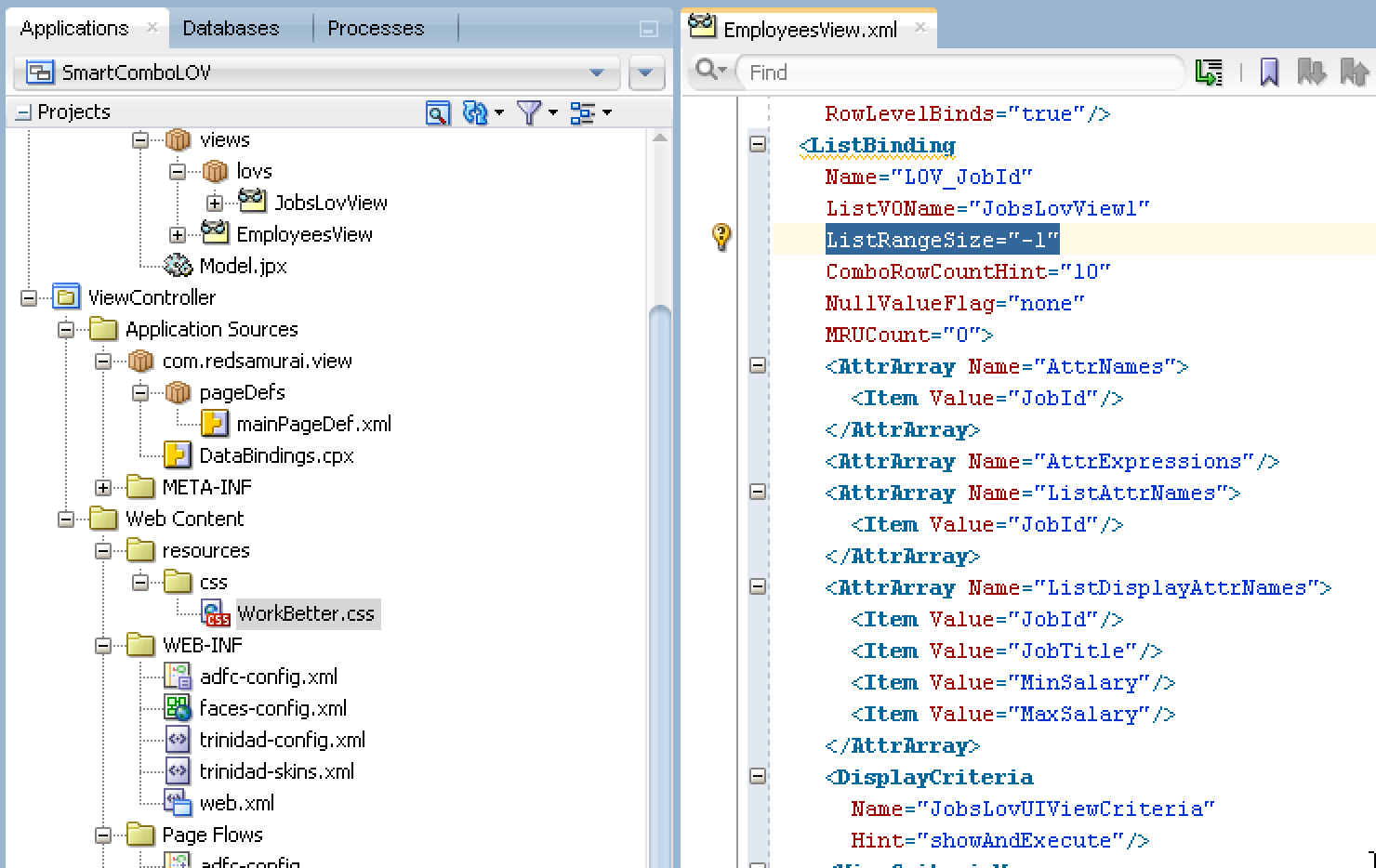
Another important thing to remember about LOV's in ADF 12c - List Range Size property. By default it is being set to -1. This is OK for simple choice lists, where you would like to show all data at once. But not suitable for LOV or combo with LOV, where we don't want to fetch all LOV items at first load:


I would set it to 10, this will populate only visible set of LOV records:


Take a look, how LOV popup window will look after improvements applied - it is stretchable by the user and only initial set of list item records is fetched:


Make sure to use combo LOV with initial filter criteria, to optimise LOV behaviour. Download sample application - SmartComboLOV.zip.

Friday, April 18, 2014

Case Insensitive Search in LOV - Effective and Generic

Search in LOV dialog window, by default is not case insensitive. You could define View Criteria for LOV VO with case insensitivity and select this criteria to be displayed in LOV dialog. You could do this for one or two, may be for ten LOV's - but I'm sure you are going to get tired pretty soon. Much more effective is to implement generic solution to convert LOV search criteria to be UPPER case automatically.

I'm using sample application from my previous post about dynamic ADF BC and new dynamic ADF UI component in ADF 12c - ADF Dynamic ADF BC - Loading Multiple Instances (Nr. 100 in 2013). The same technique as described below can be applied also for design time ADF BC, across different ADF versions. Download sample application, updated for this post - ADFDynamicReportUI_v6.zip.

Default search dialog is case insensitive, you could test it quite easily. Try to search for lower case value, when you know there are upper case matching values - there will be no results:


SQL query is generated with a WHERE clause as it should, it is trying to search for matching values - but there are no such records in DB:


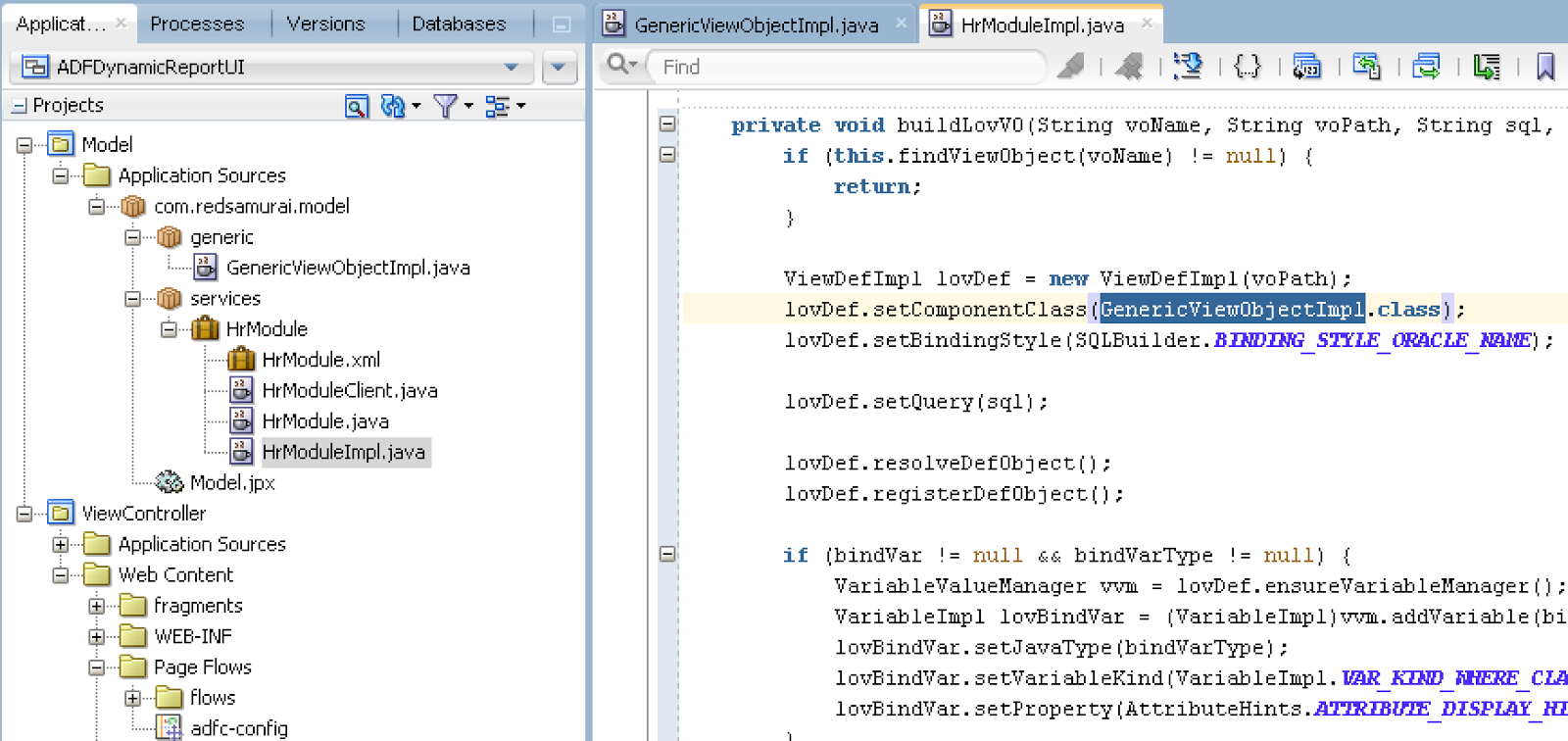
We could solve it with generic class - our custom View Object implementation class. My sample is using dynamic ADF BC, so I register this custom class programmatically with VO instance (typically you could do it through the wizard for design time ADF BC):


As I mentioned above, sample application is using ADF UI dynamic component, however the same works with regular ADF UI also - it doesn't matter:


Here is the main trick how to make search from LOV dialog to be case insensitive. You must override buildViewCriteriaClauses method in View Object implementation class. If current VO instance represents LOV (if you don't want to rely on naming convention, you could create additional View Object implementation class, intended to use only for LOV's), we should invoke setUpperColumns method applied for View Criteria. This converts entire View Criteria clause to use UPPER for both criteria item and bind variable:


Now with automatic conversion to UPPER case, try to execute the same search - you should see results:


View Criteria clause is constructed with UPPER and this is why it allows to perform case insensitive search. Of course, for runtime DB performance optimisation, you need to make sure there is functional index created for searchable columns:


The same works for any number of View Criteria items. Here I search using both attributes:


View Criteria clause contains both attributes and both are changed to use UPPER - this is perfect:


Case insensitive auto completion works as well with the technique described above. Try to type a value, existing in LOV - but with lower case (it_prog):


Such value is located and is automatically changed to use the case as it is originally stored in DB (IT_PROG):


View Criteria clause was constructed with UPPER in the case of auto completion as well as with regular search in LOV dialog:

Saturday, December 21, 2013

Workaround for Infamous Bug 13626875

There is such issue logged on Metalink - inputListOfValues Field Not Updated When Selecting A Value Violating A Unique Key. (Doc ID 1402074.1). This is related to LOV functionality and validation. As per Oracle statement - LOV list must include only valid values, list should not return invalid values, this is by LOV design. However, this doesn't sound logical in most of the cases - often LOV may contain complete list of values and for specific attribute we need to enforce validation to accept only a subset of all values available in the list. Despite Oracle answer as such functionality is not possible b design, there is workaround to make it work.

Sample application contains required fix - LOVValidationApp.zip. This sample app is created with JDEV 12c, however same workaround can be applied for earlier JDEV versions. Firstly I'm going to describe, how it works without workaround - by default. Let's assume, we have Departments LOV defined for Department Id attribute:


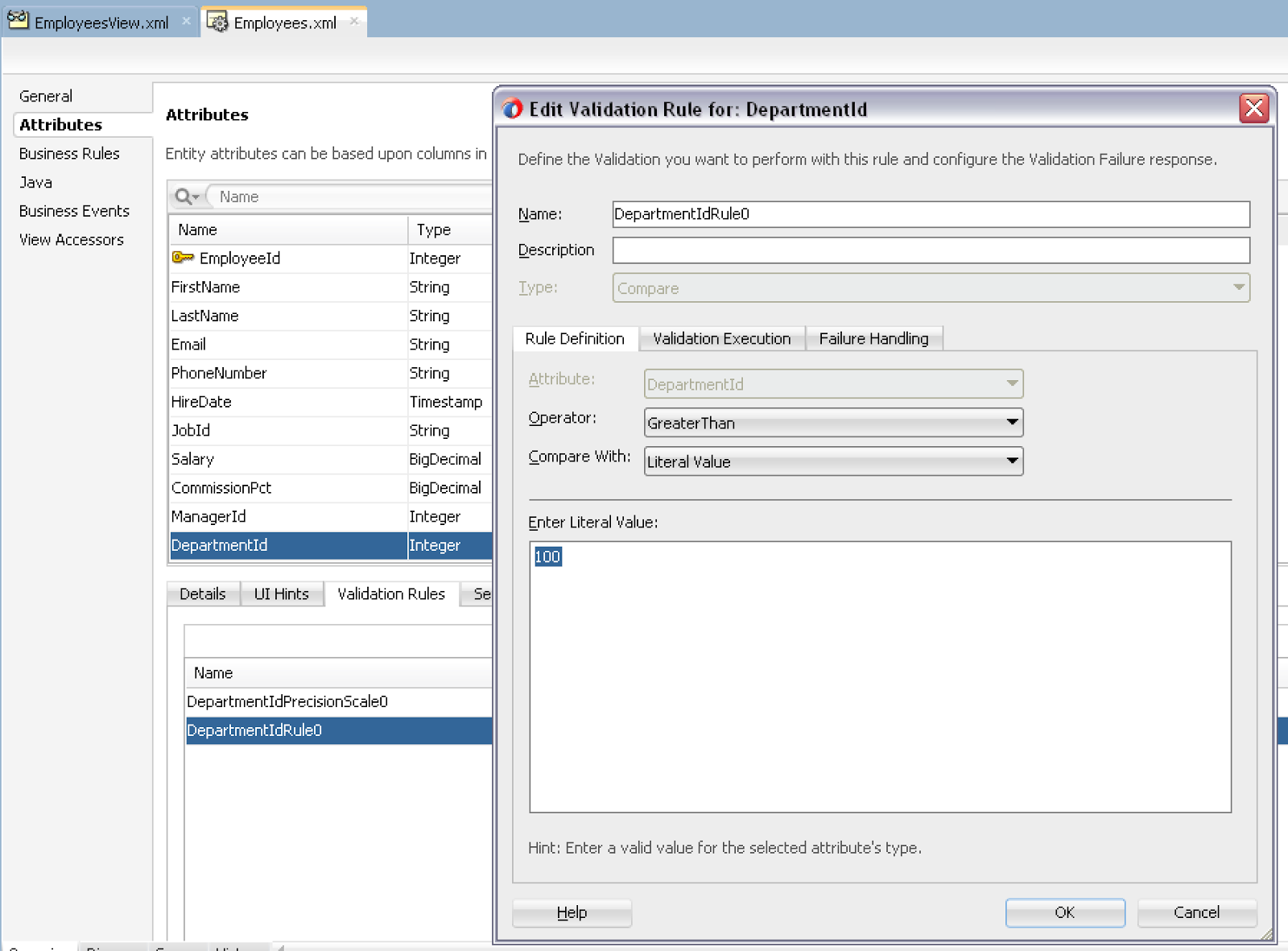
Department Id is assigned with validation rule - Department Id value must be greater than 100. This is to simulate issue related to LOV behaviour:


On runtime I'm going to pick Employee with currently set Department Id 140 and open LOV dialog. I'm going to select Department Id 30 from LOV dialog and try to set to the field:


What we would get, is not what we would expect. Selected value is not assigned, previous value still is displayed:


On the next click, moving focus or selecting other value - then suddenly change LOV value gets updated and validation error is displayed. This is fine, but this should happen one step earlier:


We need to speed up validation process by one step - immediately after value was selected. Workaround is to set ExceptionMode = Immediate for the Data Control Usage in DataBindings.cpx file:


With ExceptionMode = Immediate, somehow magically LOV value is changed instantly and validation error is displayed when it should. Repeating the same test as before - selecting value below 100 and returning it from LOV:


Value is changed and validation is displayed as expected:


So, if Oracle answer - 'not supported by design', didn't help, try to apply ExceptionMode = Immediate setting for Data Control Usage in DataBindings.cpx