Combination of Oracle UCM 11g and Oracle WebCenter/ADF 11g technologies will help you to implement document management applications. There is a special area you should keep in mind - security. Sometimes is not too obvious and can make your system open for hacking attacks. I will describe possible scenario how one user can view all documents and how to prevent this with UCM security accounts, if tight security must be enabled for your system.
Download sample application for this post - UCMNewFolderDC.zip.
As a condition for our experiment, all Content Repository folders are protected by security group - HumanResources:
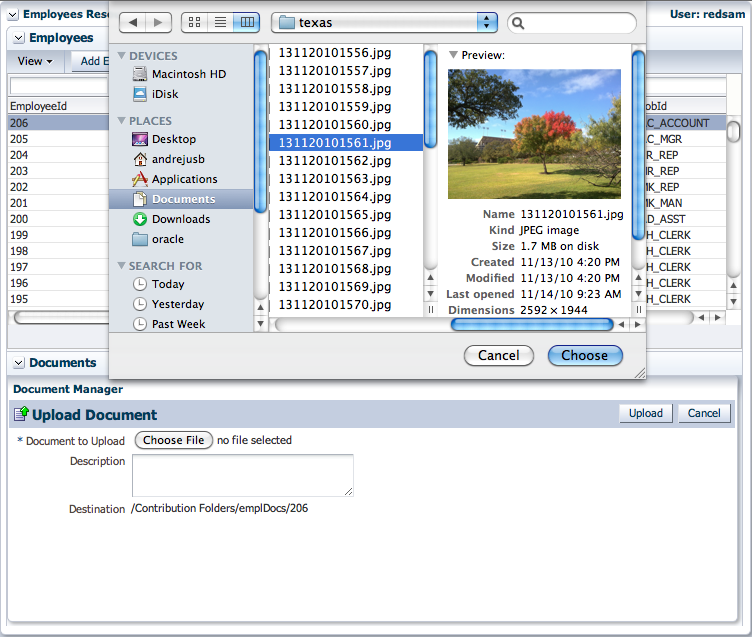
File is being uploaded by redsam1 user for employee #id = 206:
Another file for employee #id = 200:
When user selects employee, UCM path is calculated and it restricts from navigation through other folders. If user selects employee #id = 200, this means WebCenter Content Manager ADF task flow will bring documents only from that folder mapped with employee #id = 200. If user is restricted to see employee #id = 206 data, this means documents are unaccessible as well? No - we still can open documents. While employee #id = 200 is selected, right click on any of the documents and select Copy Link:
Copy paste this link into new tab of the same browser:
Selected image is rendered as expected:
Now we can remove document and folder names from URL path, try to open root folder:
And here we go - we can see documents folders for other employees (even it is prevented in WebCenter Content Management ADF task flow):
Even more, we can enter into other employee (#206) documents folder:
View and download existing documents:
Of course, this can be done only by the user, who is authorized to login into the system. But still, this user can view other users documents without authorization, simply by changing hardcoded URL path directly:
Document is downloaded:
If documents stored inside different folders share common security level, it is enough to apply only one Security Group - then users assigned with that Security Group will be able to browse through those folders using URL path. However, if users of the same Security Group are not allowed to browse through other users folders, additionally to UCM Security Groups, we need to apply UCM Security Accounts. In theory, we could have different Security Groups for different users, but then we will end up in too many different Security Groups. This means, we should apply intersection between Security Groups and Security Accounts in UCM Content Repository.
I will explain how to assign Security Account through Oracle Content Server User Admin applet (from Admin Applets section):
For this exercise I'm using two users - redsam1 and redsam2, both of them are declared in UCM:
In the same applet, from Security menu I can define different accounts, for example - DepartmentOneGroup and DepartmentTwoGroup. I will use these account to grant them to the users:
By default, every user is granted full access to the documents without accounts:
I will revoke full access to the documents without accounts and grant DepartmentOneGroup account for redsam1:
Another user - redsam2, is granted with DepartmentTwoGroup account:
Once accounts are granted to the users, we need to update existing folders with proper accounts, otherwise these folders will be inaccessible. Folder #200 is granted for DepartmentOneGroup account:
Folder #206 is granted for DepartmentTwoGroup account.
We can test configured Content Repository accounts security. Login with user redsam1:
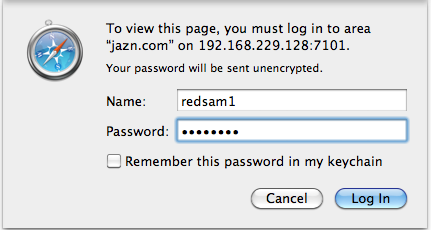
User redsam1 is granted with DepartmentOneGroup, same account as one configured for folder #200:
While folder #206 is configured for DepartmentTwoGroup account, and is inaccessible for user redsam1 as expected:
Go back into folder #200 and open one of the available documents in new tab:
Document:
Will be rendered by URL:
If we try to change URL to point to the root folder:
Content will be hidden and inaccessible, because root folder is not assigned with any account and user redsam1 is not granted access to folders without accounts (as per configuration above):
Let's login as another user - redsam2:
Folder #206 is granted for DepartmentTwoGroup account and is visible for redsam2 user:
We can open documents from #206 folder:
But can not change folder and open documents from another account, for example folder #200:
Content Repository resource will be not found (as expected):
Our experiment is successful, combination of Security Group and and Account allows to prevent users to open unauthorized folders, even they are granted with the same Security Group.
If you need to create Oracle UCM Content Repository folder programmatically, add one more parameter through RIDC API - dDocAccount:
You can retrieve account name for current user, for example - through ADF Security Context populated from WebLogic security provider:
Content Repository folder will be created programmatically, user can upload documents:
Current user account name will be assigned to the folder:
And to the uploaded content as well:
Showing posts with label RIDC. Show all posts
Sunday, December 26, 2010
Understanding Oracle UCM 11g and Oracle ADF 11g Security Integration
Wednesday, December 8, 2010
Oracle UCM 11g Remote Intradoc Client (RIDC) Integration with Oracle ADF 11g
Few days ago I was describing Oracle Universal Content Management (UCM) 11g connection setup from JDeveloper 11g for Oracle WebCenter 11g ADF task flows - Oracle Universal Content Management 11g and Oracle ADF/WebCenter 11g Integration. Its great we have out of the box WebCenter ADF task flows for document management in UCM. However, for complete business scenario implementations usually its not enough and we need to manage Content Repository programmatically. This can be achieved through Remote Intradoc Client (RIDC) API. Its quite hard to find any practical information about this API, but I managed to get code for UCM folder creation/removal and folder information. Will share it today with you, through sample application - UCMNewFolder.zip.
There is no need to close RIDC connection after request, it is closed automatically when response.getResponseAsBinder() method is invoked. For new folder we must specify parent folder ID, it is internal UCM identificator, it can be retrieved from folder path:
2) UCM folder ID Info
DataBinder dataBinder = idcClient.createBinder();
dataBinder.putLocal("IdcService", "COLLECTION_INFO");
dataBinder.putLocal("hasCollectionPath", "true");
dataBinder.putLocal("dCollectionPath", path);
ServiceResponse response = idcClient.sendRequest(userContext, dataBinder);
DataBinder serverBinder = response.getResponseAsBinder();
DataResultSet resultSet = serverBinder.getResultSet("PATH");
DataObject dataObject = resultSet.getRows().get(resultSet.getRows().size() - 1);
folderId = dataObject.get("dCollectionID");
3) Delete UCM folder
DataBinder dataBinder = idcClient.createBinder();
dataBinder.putLocal("IdcService", "COLLECTION_DELETE");
dataBinder.putLocal("hasCollectionID", "true");
dataBinder.putLocal("dCollectionID", this.getFolderIdFromPath(idcClient, userContext, path));
dataBinder.putLocal("force", "true");
dataBinder.putLocal("deleteImmediate", "true");
ServiceResponse response = idcClient.sendRequest(userContext, dataBinder);
response.getResponseAsBinder();
4) Check if folder contains Files or internal Folders
DataBinder dataBinder = idcClient.createBinder();
dataBinder.putLocal("IdcService", "COLLECTION_GET_COLLECTIONS");
dataBinder.putLocal("hasCollectionID", "true");
dataBinder.putLocal("dCollectionID", this.getFolderIdFromPath(idcClient, userContext, path));
ServiceResponse response = idcClient.sendRequest(userContext, dataBinder);
DataBinder serverBinder = response.getResponseAsBinder();
DataResultSet resultSet = serverBinder.getResultSet("COLLECTIONS");
docCount += resultSet.getRows().size();
dataBinder = idcClient.createBinder();
dataBinder.putLocal("IdcService", "COLLECTION_GET_CONTENTS");
dataBinder.putLocal("hasCollectionPath", "true");
dataBinder.putLocal("dCollectionPath", path);
response = idcClient.sendRequest(userContext, dataBinder);
serverBinder = response.getResponseAsBinder();
resultSet = serverBinder.getResultSet("CONTENTS");
docCount += resultSet.getRows().size();
When I was working with UCM RIDC API, sometimes its very tough to get any info about API method return values. But there is a small trick, you can iterate through response result set names and get names for all return values:
Iterator iter = serverBinder.getResultSetNames().iterator();
while (iter.hasNext()) {
System.out.println(iter.next());
}
To compile this sample application, you will need to install RIDC library as extension for JDeveloper 11g. Please read instructions available here.
This application allows to add new employee, same time when new employee record is stored in database, it automatically creates new folder in UCM. Folder name is the same as employee ID, this allows to show documents related to selected employee. Adding new employee into the system:
Newly added employee is assigned with ID #232, folder with the same name is created in UCM (achieved programmatically using RIDC API) - WebCenter Document Management ADF task flow renders this folder:
UCM folder is changed dynamically, based on employee table row selection, because startFolderPath parameter points to managed bean method - where folder path is constructed based on current employee row selection:
We can upload new documents using out of the WebCenter functionality:
If someone is trying to remove employee record, we can check first if any documents exist for this employee. If there are documents available in Content Repository - employee removal can be prevented (achieved programmatically, using RIDC API):
Delete associated documents first:
Employee record is removed successfully:
Below I'm listing RIDC API methods from sample application. Connection with UCM is established through socket type, without specifying Content Repository password, Identity Propagation is done automatically through ADF Security Context.
1) Create new UCM folder
DataBinder dataBinder = idcClient.createBinder();
dataBinder.putLocal("IdcService", "COLLECTION_ADD");
dataBinder.putLocal("hasParentCollectionID", "true");
dataBinder.putLocal("dCollectionName", folderName);
dataBinder.putLocal("dParentCollectionID", this.getFolderIdFromPath(idcClient, userContext, PATH));
dataBinder.putLocal("dCollectionOwner", "sysadmin");
ServiceResponse response = idcClient.sendRequest(userContext, dataBinder);
DataBinder serverBinder = response.getResponseAsBinder();
System.out.println(serverBinder.getLocal("dCollectionID"));
dataBinder.putLocal("IdcService", "COLLECTION_ADD");
dataBinder.putLocal("hasParentCollectionID", "true");
dataBinder.putLocal("dCollectionName", folderName);
dataBinder.putLocal("dParentCollectionID", this.getFolderIdFromPath(idcClient, userContext, PATH));
dataBinder.putLocal("dCollectionOwner", "sysadmin");
ServiceResponse response = idcClient.sendRequest(userContext, dataBinder);
DataBinder serverBinder = response.getResponseAsBinder();
System.out.println(serverBinder.getLocal("dCollectionID"));
There is no need to close RIDC connection after request, it is closed automatically when response.getResponseAsBinder() method is invoked. For new folder we must specify parent folder ID, it is internal UCM identificator, it can be retrieved from folder path:
2) UCM folder ID Info
DataBinder dataBinder = idcClient.createBinder();
dataBinder.putLocal("IdcService", "COLLECTION_INFO");
dataBinder.putLocal("hasCollectionPath", "true");
dataBinder.putLocal("dCollectionPath", path);
ServiceResponse response = idcClient.sendRequest(userContext, dataBinder);
DataBinder serverBinder = response.getResponseAsBinder();
DataResultSet resultSet = serverBinder.getResultSet("PATH");
DataObject dataObject = resultSet.getRows().get(resultSet.getRows().size() - 1);
folderId = dataObject.get("dCollectionID");
3) Delete UCM folder
DataBinder dataBinder = idcClient.createBinder();
dataBinder.putLocal("IdcService", "COLLECTION_DELETE");
dataBinder.putLocal("hasCollectionID", "true");
dataBinder.putLocal("dCollectionID", this.getFolderIdFromPath(idcClient, userContext, path));
dataBinder.putLocal("force", "true");
dataBinder.putLocal("deleteImmediate", "true");
ServiceResponse response = idcClient.sendRequest(userContext, dataBinder);
response.getResponseAsBinder();
4) Check if folder contains Files or internal Folders
DataBinder dataBinder = idcClient.createBinder();
dataBinder.putLocal("IdcService", "COLLECTION_GET_COLLECTIONS");
dataBinder.putLocal("hasCollectionID", "true");
dataBinder.putLocal("dCollectionID", this.getFolderIdFromPath(idcClient, userContext, path));
ServiceResponse response = idcClient.sendRequest(userContext, dataBinder);
DataBinder serverBinder = response.getResponseAsBinder();
DataResultSet resultSet = serverBinder.getResultSet("COLLECTIONS");
docCount += resultSet.getRows().size();
dataBinder = idcClient.createBinder();
dataBinder.putLocal("IdcService", "COLLECTION_GET_CONTENTS");
dataBinder.putLocal("hasCollectionPath", "true");
dataBinder.putLocal("dCollectionPath", path);
response = idcClient.sendRequest(userContext, dataBinder);
serverBinder = response.getResponseAsBinder();
resultSet = serverBinder.getResultSet("CONTENTS");
docCount += resultSet.getRows().size();
When I was working with UCM RIDC API, sometimes its very tough to get any info about API method return values. But there is a small trick, you can iterate through response result set names and get names for all return values:
Iterator iter = serverBinder.getResultSetNames().iterator();
while (iter.hasNext()) {
System.out.println(iter.next());
}
Labels:
ADF,
Integration,
JDeveloper 11g,
RIDC,
UCM,
WebCenter
Monday, December 6, 2010
Oracle Universal Content Management 11g and Oracle ADF/WebCenter 11g Integration
Every organization operates with different kind of documents. Oracle Forms systems usually store documents directly in database, using BFILE/BLOB format. It is hard to manage such content and publish it effectively. Oracle Fusion provides Oracle Universal Content Management (UCM) 11g product to store and manage unstructured data (documents, images, etc.). Today I will explain how to define Content Server connection from JDeveloper 11g and how to use WebCenter 11g ADF task flow to manage content stored in UCM repository.
You can download Oracle UCM 11g from OTN:
Sample application - UCMNewFolder.zip. This sample is typical ADF 11g application with WebCenter 11g support. Additionally it is using Oracle UCM 11g RIDC API, topic to be covered by future posts. There is no need to import RIDC API for WebCenter 11g UCM related ADF task flows. Its just my sample application is using advanced Oracle UCM 11g functionality (programmatic folder creation, removal and information retrieval) I will explain it in near future.
In order to compile provided sample application, you need to install RIDC library. This library can be found inside Oracle UCM 11g installation home - ORACLE_ECM/ucm/Distribution/RIDC/jdev:
Install this library as JDeveloper 11g extension - from local file:
New extension will be added:
RIDC library will be listed as JDeveloper 11g extension:
Now, when RIDC library was installed - we can compile sample application. Let me repeat - there is no need to install RIDC library, if you want to implement only WebCenter 11g ADF task flows related to UCM. However, sample application contains custom functionality, it requires RIDC library (next post topic).
Its time now to define Content Repository connection. This will enable us to use WebCenter 11g Document service (Oracle UCM 11g) ADF task flows:
There is developer guide for Oracle WebCenter 11g, it describes how to setup connections for Oracle UCM 11g from JDeveloper 11g environment - Integrating, Presenting, and Publishing Content. I will explain from my experience, what are the most popular options for Content Repository connection configuration. As you can see from Oracle WebCenter 11g developer guide, there are various RIDC Socket Types. There are two most common types - web and socket. You should keep in mind, when using web socket - it will not perform Identity Propagation and will not access secured Content Repository content. This means web socket is good for read-only public access. Let's check how it works. I will configure web socket connection:
For web socket, you need to specify URL of the Web Server Plugin, Admin Username and Password for Oracle UCM. Set this connection as primary, it will become default connection:
Before running application and testing defined connection, lets open Content Server admin console and check how content folders are defined there:
Under Contribution Folders we have our custom emplDocs folder. This folder was created by me, WebCenter 11g Document service ADF task flows are configured to point to this folder:
Folder is protected by HumanResources security group:
Now when I run sample application, with web socket configured for Content Repository connection, login is failing. Its because web socket is not allowed to perform Identity Propagation from ADF security context, Oracle UCM 11g server rejects anonymous access to protected folder (it would work if we would try to connect to public folder):
Let's change to socket connection and see how it will work. For socket connection, specify its type, server host and listener port (admin username and password are not needed). Keep in mind, Oracle UCM 11g Content Server needs to be configured to accept requests from WebLogic Server machine, otherwise socket connection will be rejected:
Now application is able to connect to protected folder and render WebCenter 11g Document service ADF task flow - Document Manager:
Document Manager WebCenter 11g ADF task flow provides different document management operations out of the box - file upload, download, removal, update and versioning. We can test it and try to upload a new file:
I will select image file:
File is successfully uploaded into protected folder and stored inside Content Repository - Oracle UCM 11g:
My next blog post will describe how to manage Oracle UCM 11g folder structure programmatically from Java code using RIDC library - create, remove and retrieve folder info.
You can download Oracle UCM 11g from OTN:
Sample application - UCMNewFolder.zip. This sample is typical ADF 11g application with WebCenter 11g support. Additionally it is using Oracle UCM 11g RIDC API, topic to be covered by future posts. There is no need to import RIDC API for WebCenter 11g UCM related ADF task flows. Its just my sample application is using advanced Oracle UCM 11g functionality (programmatic folder creation, removal and information retrieval) I will explain it in near future.
In order to compile provided sample application, you need to install RIDC library. This library can be found inside Oracle UCM 11g installation home - ORACLE_ECM/ucm/Distribution/RIDC/jdev:
Install this library as JDeveloper 11g extension - from local file:
New extension will be added:
RIDC library will be listed as JDeveloper 11g extension:
Now, when RIDC library was installed - we can compile sample application. Let me repeat - there is no need to install RIDC library, if you want to implement only WebCenter 11g ADF task flows related to UCM. However, sample application contains custom functionality, it requires RIDC library (next post topic).
Its time now to define Content Repository connection. This will enable us to use WebCenter 11g Document service (Oracle UCM 11g) ADF task flows:
There is developer guide for Oracle WebCenter 11g, it describes how to setup connections for Oracle UCM 11g from JDeveloper 11g environment - Integrating, Presenting, and Publishing Content. I will explain from my experience, what are the most popular options for Content Repository connection configuration. As you can see from Oracle WebCenter 11g developer guide, there are various RIDC Socket Types. There are two most common types - web and socket. You should keep in mind, when using web socket - it will not perform Identity Propagation and will not access secured Content Repository content. This means web socket is good for read-only public access. Let's check how it works. I will configure web socket connection:
For web socket, you need to specify URL of the Web Server Plugin, Admin Username and Password for Oracle UCM. Set this connection as primary, it will become default connection:
Before running application and testing defined connection, lets open Content Server admin console and check how content folders are defined there:
Under Contribution Folders we have our custom emplDocs folder. This folder was created by me, WebCenter 11g Document service ADF task flows are configured to point to this folder:
Folder is protected by HumanResources security group:
Now when I run sample application, with web socket configured for Content Repository connection, login is failing. Its because web socket is not allowed to perform Identity Propagation from ADF security context, Oracle UCM 11g server rejects anonymous access to protected folder (it would work if we would try to connect to public folder):
Let's change to socket connection and see how it will work. For socket connection, specify its type, server host and listener port (admin username and password are not needed). Keep in mind, Oracle UCM 11g Content Server needs to be configured to accept requests from WebLogic Server machine, otherwise socket connection will be rejected:
Now application is able to connect to protected folder and render WebCenter 11g Document service ADF task flow - Document Manager:
Document Manager WebCenter 11g ADF task flow provides different document management operations out of the box - file upload, download, removal, update and versioning. We can test it and try to upload a new file:
I will select image file:
File is successfully uploaded into protected folder and stored inside Content Repository - Oracle UCM 11g:
My next blog post will describe how to manage Oracle UCM 11g folder structure programmatically from Java code using RIDC library - create, remove and retrieve folder info.
Labels:
ADF,
Integration,
JDeveloper 11g,
RIDC,
UCM,
WebCenter
Subscribe to:
Posts (Atom)