I was preparing proof of concept for such scenario, where ADF application was working with multiple data sources. Requirement was to be able to select data source on runtime, before login. We had several DB users, different DB security applied to each of them - separate data source was defined. Different data source per business site, not really per business user - this would be too much. I would like to post and describe prepared sample application. Data Source runtime switch is implemented based on concept described in Jobinesh blog - Modifying the Application Module's JDBC DataSource at run time.
Download sample application - UserDataADFBCSample_v3.zip. This sample is based on application from my previous posts, it is enhanced with Data Source selection from login page.
Data Source runtime switch is implemented basically in two steps:
1. In the Model there is custom class that implements EnvInfoProvider. Specifically one method is overriden - getInfo(String, Object). This method reads data source name from session scope (its where we set it during login) and puts it into AM configuration:

2. Each Application Module must be set with proper configuration for jbo.envinfoprovider property. This property must point to our custom EnvInfoProvider class (see above):

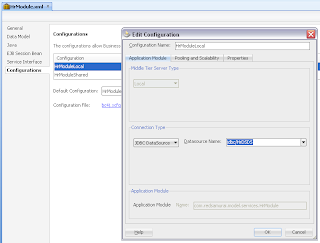
Default Data Source name defined for Application Module is still important, ADF BC will use it in case if no custom Data Source name was provided:
I'm getting list of Data Sources from static VO:

This VO is exposed through Application Module Data Control. Keep in mind, even VO is static - AM still we be initialized on VO access. This means AM will establish connection to database, at that time when we will load static VO data. Custom Data Source name will not be set yet - default Data Source name will be used. Instance of static VO with list of Data Sources:

UI list with Data Sources can be created by drag and drop of DataSourcesView1 instance from Data Control into JSF page. Select Single Selection -> ADF Select One Choice option:

Choose display attribute - press OK and choice list with Data Source names will be generated for you:

Once choice list was created, go to Login page definition and create Name attribute binding (based on same iterator as Data Source choice list):

This will allow us to access selected Data Source name from Login bean - doLogin() method:

Here how it looks on runtime - user selects Data Source from the list:

User logs in into application - Application Module configuration is initialized with Hr DB data source and data is rendered:

From the log we can see that after login, session cookie was changed. This happens because there are two Web sessions created always - before and after login (its how it works by default in ADF). This allows us to set custom Data Source name after login action is done. Remember - before login, Application Module is initialized with default Data Source:

Hr Test DB - is non existing Data Source, I'm using it only for test purpose - application should fail, to prove Application Module is using Data Source selected during login:

Indeed application breaks:

From the log we can see that Application Module was trying to connect with jdbc/HrTest Data Source - correct as expected:

Download sample application - UserDataADFBCSample_v3.zip. This sample is based on application from my previous posts, it is enhanced with Data Source selection from login page.
Data Source runtime switch is implemented basically in two steps:
1. In the Model there is custom class that implements EnvInfoProvider. Specifically one method is overriden - getInfo(String, Object). This method reads data source name from session scope (its where we set it during login) and puts it into AM configuration:

2. Each Application Module must be set with proper configuration for jbo.envinfoprovider property. This property must point to our custom EnvInfoProvider class (see above):

Default Data Source name defined for Application Module is still important, ADF BC will use it in case if no custom Data Source name was provided:

I'm getting list of Data Sources from static VO:

This VO is exposed through Application Module Data Control. Keep in mind, even VO is static - AM still we be initialized on VO access. This means AM will establish connection to database, at that time when we will load static VO data. Custom Data Source name will not be set yet - default Data Source name will be used. Instance of static VO with list of Data Sources:

UI list with Data Sources can be created by drag and drop of DataSourcesView1 instance from Data Control into JSF page. Select Single Selection -> ADF Select One Choice option:

Choose display attribute - press OK and choice list with Data Source names will be generated for you:

Once choice list was created, go to Login page definition and create Name attribute binding (based on same iterator as Data Source choice list):

This will allow us to access selected Data Source name from Login bean - doLogin() method:

Here how it looks on runtime - user selects Data Source from the list:

User logs in into application - Application Module configuration is initialized with Hr DB data source and data is rendered:

From the log we can see that after login, session cookie was changed. This happens because there are two Web sessions created always - before and after login (its how it works by default in ADF). This allows us to set custom Data Source name after login action is done. Remember - before login, Application Module is initialized with default Data Source:

Hr Test DB - is non existing Data Source, I'm using it only for test purpose - application should fail, to prove Application Module is using Data Source selected during login:

Indeed application breaks:

From the log we can see that Application Module was trying to connect with jdbc/HrTest Data Source - correct as expected:


